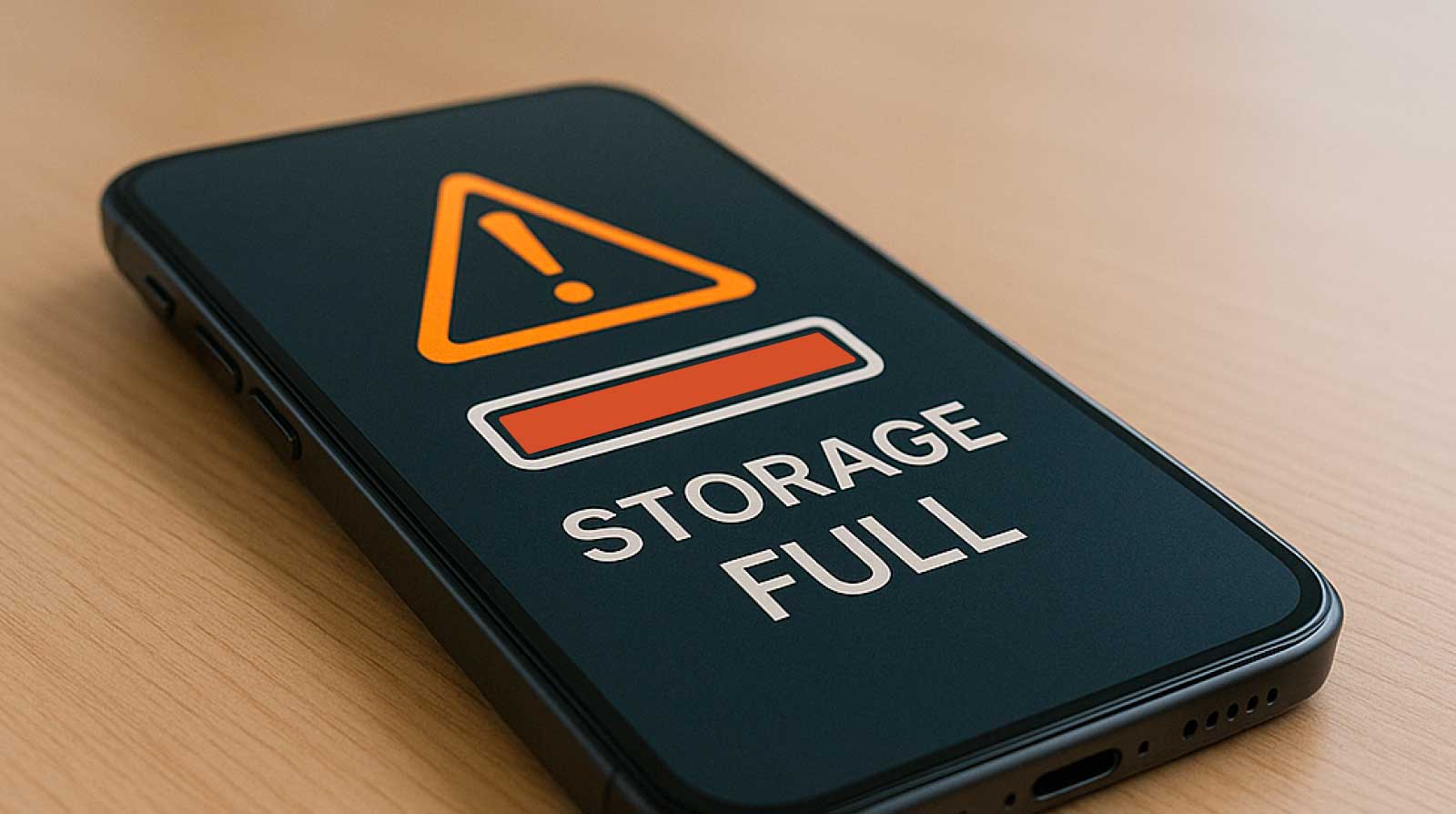
Modern messengers like WhatsApp and Telegram have become an essential part of everyday communication, but they also bring an unexpected problem: memory overload. With countless chats, group discussions, and endless forwards, your smartphone’s gallery can quickly turn into a digital landfill of memes, motivational quotes, seasonal greetings, and funny but unnecessary videos. This not only clutters your gallery but also consumes valuable storage space. Fortunately, both WhatsApp and Telegram provide simple ways to stop media from being saved automatically, giving you more control over your device’s memory usage.
Managing auto-download in WhatsApp
On WhatsApp, media downloads are tied directly to your network connection preferences. Open the app, tap on the three dots at the top right corner, and go into Settings. From there, head to Data and storage. Inside the Automatic media download section, you’ll see options for different types of files – photos, audio, videos, and documents. Each category can be configured separately depending on whether you are connected to mobile data, Wi-Fi, or roaming. For instance, you may prefer to download photos automatically on Wi-Fi but avoid videos entirely unless you choose them manually. This flexibility helps you save both storage and mobile data while avoiding gallery clutter.
Configuring Telegram’s smarter tools
Telegram goes even further than WhatsApp by letting you manage not only what files download automatically but also how long they remain stored on your device. After launching the app, tap on the three-line menu at the top left and go to Settings → Data and storage. In the Media auto-download section, you can toggle off categories like photos, videos, and voice messages. Furthermore, Telegram allows you to set different rules for mobile networks and Wi-Fi connections. You could, for example, allow large files only via Wi-Fi while blocking them completely on mobile data. Beyond that, Telegram includes a unique Memory usage option that lets you decide how long downloaded files stay on your device before they are automatically removed – whether three days, one week, or longer. This ensures that your phone isn’t permanently burdened by temporary files.
Quick recap
For WhatsApp: open Settings → Data and storage → Media auto-download, then select which file types should download automatically depending on your network. For Telegram: open Settings → Data and storage → Media auto-download, and adjust both the file type and storage period. With these adjustments, you gain control over your storage space, keep your gallery tidy, and prevent your phone from slowing down due to unnecessary downloads.