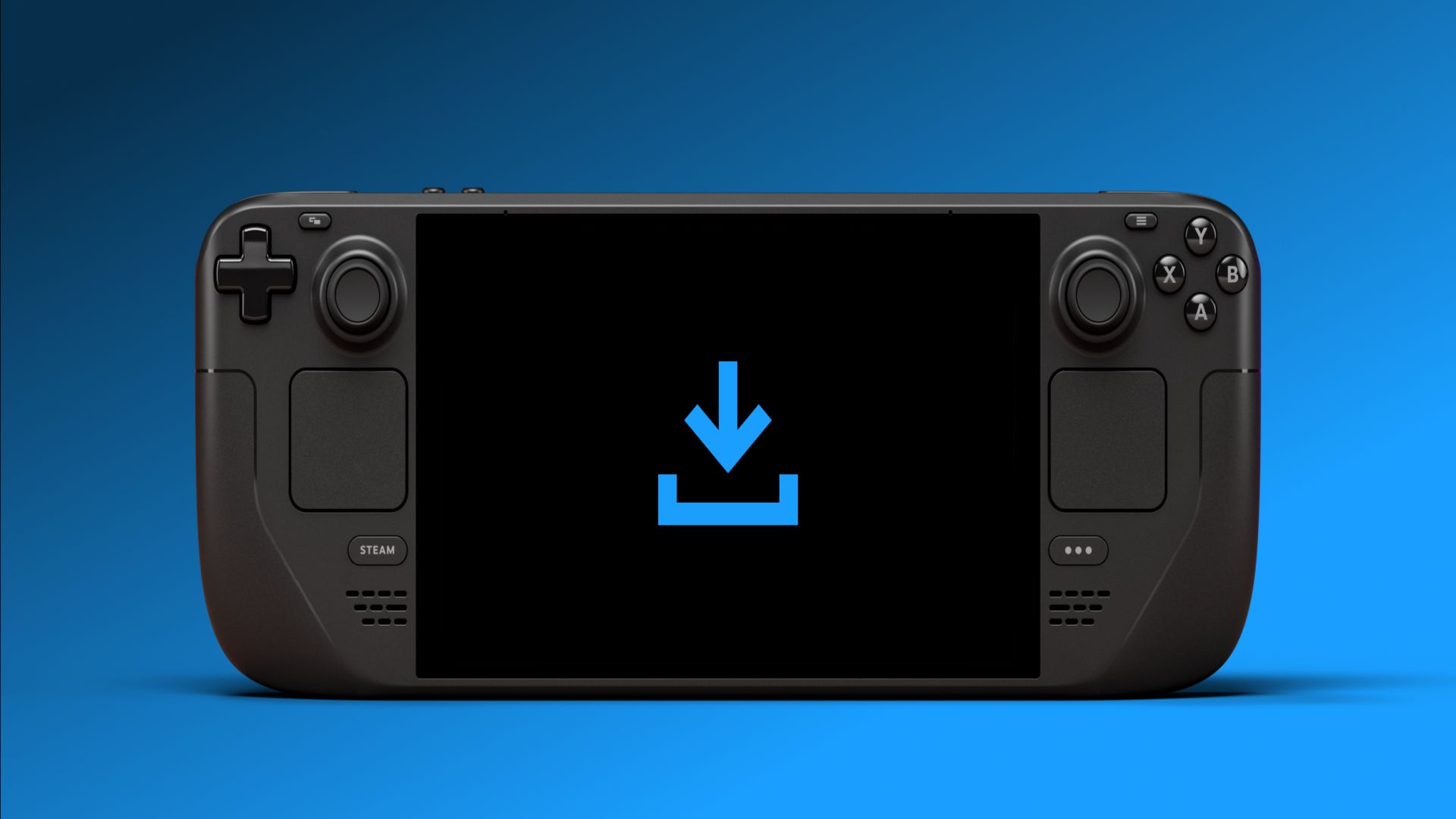
Steam Deck Beta finally brings display-off, low-power downloads – here’s what changed and how to use it
Steam Deck owners have been asking Valve for smarter background downloads since launch, and the latest Beta Client update delivered exactly that. A new display-off, low-power downloads mode lets your handheld finish active game and update downloads with the screen off, then put itself to sleep when the queue is done. It’s a small switch with big quality-of-life impact: less battery drain, fewer interruptions, and a more console-like experience.
What the new mode actually does
When display-off downloads are active, the Deck keeps the network and storage pipeline humming while the screen and most non-essential components power down. The system prioritizes efficiency so you can top up your library or pull in big patches without babysitting the device. By default, this behavior is enabled while the Deck is plugged into power, and you can toggle it any time from Settings → Power.
Two easy ways to trigger it
- Manual: press the power button during a download. You’ll see a new dialog asking if you want to keep downloading with the display off. Confirm, and the Deck slips into its low-power state while the transfer continues.
- Automatic: let the idle timer do it. If downloads are running and the Deck sits idle, it will enter display-off mode on its own. Tap any button to bring up a compact status screen that shows progress at a glance; from there you can either wake the system fully or let it continue quietly in the background.
Bug fixes bundled with the Beta
The Beta Client isn’t just about downloads. Valve also squashed a couple of annoyances: SteamOS updates now properly respect HTTP proxy settings, and a regression that hid the performance graph while streaming has been corrected. If you rely on network proxies or like to monitor frametimes mid-stream, these fixes will be immediately noticeable.
Why it matters for handheld gaming
On a handheld, time and power budget are precious. Before this update, leaving the screen on for long downloads felt wasteful, and putting the Deck to sleep risked pausing the queue. Display-off downloads split the difference: you get the progress you want with a fraction of the energy draw, especially useful for large AAA patches or shader pre-caching. It also aligns the Deck with the behavior many players expect from living-room consoles, reinforcing its role as a do-everything portable PC.
Setup tips and smart usage
- Verify the toggle: Head to Settings → Power to confirm the feature is on, particularly if you’re on battery.
- Plug in for marathon queues: The mode is most effective while charging; you’ll finish multi-gigabyte updates without waking to a dead battery.
- Mind storage space: If your microSD or SSD is tight, clear space first to avoid stalled downloads.
- Watch the status overlay: After an idle timeout, a single button press shows progress without fully waking the system – perfect for quick checks.
Part of a steady cadence of improvements
Since the Steam Deck launched in 2022, Valve has iterated relentlessly on SteamOS and the client experience – tuning performance, expanding compatibility, and responding to community requests like this one. Accessories have matured alongside the software, from official docks to third-party options such as compact travel docks and desk-friendly stands, making the Deck a more flexible daily driver whether you’re docked, tethered, or on the go.
How to get the update
Opt into the Steam Client Beta on your Deck if you haven’t already, then check for updates. Once installed, start a download, press the power button, and choose to continue with the display off. That’s it – you’ve unlocked a quieter, smarter way to fill your library while saving power.
It’s a deceptively simple feature, but the ripple effect is real: fewer wake-ups, smoother patch days, and more time actually playing when you pick the Deck back up.