How to Share Internet from Your Android Phone: Complete Guide for Wi-Fi, Bluetooth, and USB
Few things are more frustrating than losing access to the internet right when you need it most – maybe your home broadband suddenly cuts out during an important video meeting, or you’re traveling and need to get your laptop online in a hurry. Fortunately, if you own an Android smartphone, you already have a built-in solution. Your device can double as a mobile modem, sharing its mobile data connection with your computer, tablet, or even another phone. This process is called tethering, and it can turn your Android handset into a lifesaver in emergencies or when no Wi-Fi is around.
In this expanded guide, we’ll walk you through everything you need to know about sharing internet from your Android device. Using the Realme 9 Pro as an example, we’ll cover the three most common methods – Wi-Fi hotspot, Bluetooth tethering, and USB tethering – as well as practical advice, limitations, and security tips. By the end, you’ll know not only how to enable these features, but also which method is best suited for different situations.
Which Android Phones Can Share Internet?
Nearly every Android phone released in the last decade supports internet sharing. In fact, the feature has been around since Android 2.2 Froyo, which debuted back in 2010. Whether you have a budget-friendly handset or a flagship powerhouse, if your device runs Android, you can most likely set it up as a hotspot. The only requirement is that your phone must have an active mobile internet connection and a strong signal.
Before you begin, it’s critical to check the terms of your mobile plan. Many providers impose restrictions on tethering, sometimes capping the amount of data that can be shared or charging extra for hotspot use. Some carriers allow unlimited mobile browsing on the phone itself but throttle speeds or cut off data when it’s shared with other devices. Always review your provider’s rules – either through your online account, by reading your tariff details, or by calling the operator’s hotline – to avoid unexpected bills.
Method 1: Share Internet via Wi-Fi Hotspot
The most popular and convenient way to share mobile data is through a Wi-Fi hotspot. With this option, your phone essentially becomes a portable router. You can connect multiple devices at once, including laptops, tablets, and other smartphones. The only limitation is that the receiving device must have Wi-Fi capability – while that’s almost universal today, some desktop PCs may lack it.
Here’s a step-by-step breakdown using the Realme 9 Pro:
- Open Settings on your phone.
- Navigate to Connection & Sharing (or a similarly named section like Hotspot & Tethering or Modem Mode).
- Select Personal Hotspot.
- Toggle the switch to enable it. Your phone is now broadcasting a Wi-Fi signal.
- Tap Hotspot Settings to configure the network name (SSID) and set a strong password. Avoid leaving the network open – without a password, anyone nearby could connect and consume your data.
Once set up, go to the device you want to connect (such as a laptop). Turn on Wi-Fi, look for your phone’s hotspot name, and enter the password. Within seconds, you’ll be online.
For quick access, Android devices also allow you to enable or disable hotspot directly from the notification shade. Simply swipe down and tap the Hotspot icon. This shortcut is handy when you need to connect in a rush.
Tip: Always turn off the hotspot when you’re done. Otherwise, background updates or downloads on connected devices could drain your data allowance without you noticing.
Method 2: Share Internet via Bluetooth Tethering
If Wi-Fi isn’t an option, perhaps because the device you’re connecting doesn’t have a Wi-Fi card, Bluetooth tethering is a practical alternative. Although less common today, it’s especially useful for desktops with Bluetooth adapters but no wireless network cards.
To enable Bluetooth tethering on your Android phone:
- Open Settings and go to Connection & Sharing.
- Choose Personal Hotspot and turn on Bluetooth Tethering.
- Next, go to your phone’s Bluetooth menu to check or rename your device – this is how it will appear during pairing.
- On the receiving device, open Bluetooth settings, scan for new devices, and select your phone when it appears.
- A pairing request will pop up. Confirm that the code shown matches on both devices, then tap Connect.
After pairing, your other device will be able to use your phone’s internet connection. Just remember to disconnect and turn off Bluetooth when finished to save battery and prevent unnecessary connections.
Method 3: Share Internet via USB Cable
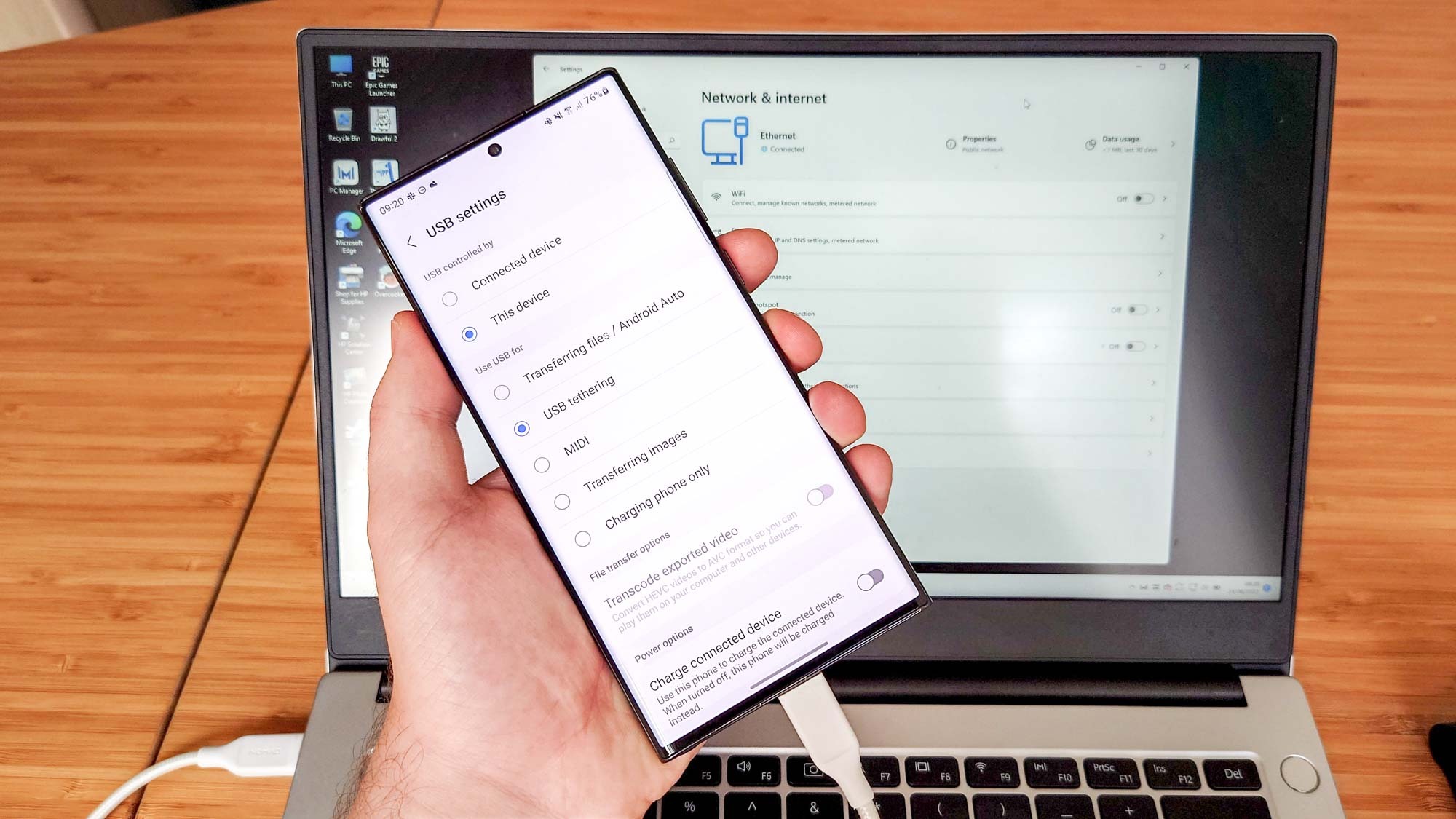
Sometimes, a wired connection is the most reliable solution. USB tethering is particularly useful when your PC lacks both Wi-Fi and Bluetooth. Another advantage: while tethering, your phone charges at the same time, helping conserve battery during long sessions.
However, there is a limitation: Android phones can share internet over USB only with Windows PCs. macOS does not support Android USB tethering without additional third-party tools.
Here’s how to set it up:
- Connect your Android phone to your Windows computer using a USB cable (Type-C or micro-USB depending on the device).
- A pop-up should appear on your phone asking what type of connection you want. Choose USB Tethering.
- If the pop-up doesn’t appear, manually go to Settings → Connection & Sharing → Personal Hotspot → USB Tethering and enable it.
- Your PC will recognize the phone as a new wired network. If prompted with “Allow other devices on this network to detect your PC?”, click Yes.
Now your computer can browse the internet through your phone’s data plan. When finished, disable USB tethering on your phone and unplug the cable.
Comparing the Three Methods
Each tethering method has strengths and weaknesses, and the best choice depends on your situation:
- Wi-Fi Hotspot: Best for sharing with multiple devices at once. Offers speed and convenience but drains battery faster.
- Bluetooth Tethering: More energy-efficient, but slower speeds. Works in cases where Wi-Fi is unavailable.
- USB Tethering: Provides the most stable connection and charges your phone simultaneously, but only works with Windows PCs and requires a cable.
Important Security and Data Considerations
Before relying heavily on tethering, keep these key points in mind:
- Data usage: Streaming, video calls, and large downloads consume mobile data quickly. Keep an eye on your usage to avoid unexpected charges.
- Battery drain: Running a hotspot can heat up your device and shorten battery life. Whenever possible, plug your phone into a charger.
- Network security: Never leave your hotspot open. Always use a strong password and, if available, enable WPA2 or WPA3 encryption.
- Provider restrictions: Some carriers detect tethering and may throttle speeds. Check your contract carefully if you plan to use tethering regularly.
Smartphone vs. Portable Router: Which Is Better?
While tethering via smartphone is convenient in emergencies, a portable 4G/5G router may be a better long-term solution for frequent use. Dedicated routers distribute mobile internet more efficiently, support more devices simultaneously, and avoid battery drain on your phone. However, they require a separate SIM card and sometimes an additional subscription. For occasional or emergency use, your smartphone is more than enough. For professionals who rely on mobile internet daily, investing in a router might be worthwhile.
Summary
Sharing internet from an Android smartphone is easy and flexible. All modern devices support it, though operators may impose restrictions. You can share data via Wi-Fi, Bluetooth, or USB cable:
- Wi-Fi is the most convenient for multiple devices.
- Bluetooth works when Wi-Fi isn’t available.
- USB provides a reliable wired connection for Windows PCs.
With just a few taps, your Android phone can transform into a mobile hotspot – keeping you connected wherever you go.
4 comments
usb tethering doesnt work on my mac, sad
good guide but remember to turn hotspot off after!
usb works best for me on my old pc
realme instructions worked for my samsung too