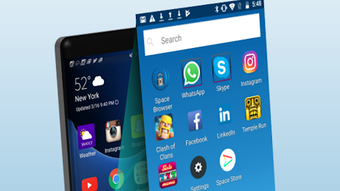
Second Space and Other Ways to Hide Data on Your Smartphone
In the digital age, our smartphones have become not only communication tools but also storage vaults for our most personal information. From work documents and sensitive photos to conversations and banking apps, everything is packed into these handheld devices. With such a concentration of private material, the question arises: how do you keep certain information away from prying eyes? Whether it’s protecting confidential work files, separating professional from personal life, or simply keeping a little privacy from family members, modern smartphones offer a range of built-in and third-party solutions. One of the most powerful approaches is creating a secure or hidden space within your phone.
Below we explore the most effective ways of hiding data on different platforms and brands – Samsung, Xiaomi, Honor/Huawei, iPhone, and even universal solutions for older Android and iOS devices. These tools, ranging from Knox Secure Folder to Second Space and Parallel Space, act almost like creating a second phone inside your own, with its own apps, contacts, and media, sealed behind a password, fingerprint, or face recognition.
Samsung Knox Folder: Building a Digital Vault
Samsung has long been at the forefront of security. Its Knox platform is often associated with enterprise-grade data protection, and one of its most user-friendly features is the Secure Folder, also known as the Knox Folder. This secure environment is available on nearly all Samsung models except the budget M series and older devices stuck on Android 7.0 or lower.
To enable Knox, navigate through: Settings → Biometrics and Security → Secure Folder. The phone will guide you to accept Samsung’s terms and permissions before allowing you to choose the type of protection: PIN, password, fingerprint, or a pattern lock. Once created, the Secure Folder appears like a separate app on your home screen. Inside, you can move or copy photos, videos, documents, apps, and contacts. The flexibility of choosing between copy or move means you can either duplicate files or make them exclusively available inside the secure space.
What makes Knox especially useful is that it integrates seamlessly with Samsung’s interface. You can clone apps like WhatsApp or Messenger to run separate accounts – one for personal use and one for work. For professionals, it allows storing sensitive files or even business apps without worrying about them mixing with casual usage.
Xiaomi’s Second Space: A True Parallel World
For Xiaomi users, the company’s MIUI shell offers something that goes even further than Knox: Second Space. Introduced with MIUI 8, this feature does not just create a folder but an entirely new environment, almost like a second phone hidden within your device. Think of it as switching between two different identities: one visible to the world and another kept private.
Setting it up is straightforward: Settings → Accessibility → Second Space → Create Second Space. After choosing your preferred unlock method (password or shortcut), the phone generates what looks like a freshly unboxed device – complete with a blank home screen. From here, you can add apps, contacts, photos, and anything else you wish to keep separate. Switching between spaces is done via a shortcut icon, always secured with your chosen password or fingerprint.
Second Space offers multiple data migration options. You can transfer apps with different settings, or even run them separately in both spaces. For instance, you could install Instagram in both spaces – one with your personal account and one with a professional alias. Files, too, can be shifted individually. This flexibility makes Xiaomi’s solution particularly appealing for people who need sharp boundaries between different aspects of their lives.
Private Space on Huawei and Honor
Huawei and Honor take a similar but slightly more restrictive approach. Their feature, called PrivateSpace, can be found on certain models running EMUI. Unlike Xiaomi, not all devices support it, and availability can vary widely. For example, tests on Honor 50 and Honor 7a showed no sign of the option, while Huawei Nova 5T included it.
Activating PrivateSpace requires navigating through: Settings → Privacy → PrivateSpace. Once enabled, you can assign a password or fingerprint authentication. Files and applications can then be moved into this hidden space using the option From MainSpace to PrivateSpace. Supported file types include images, videos, audio, and some document categories.
Though it lacks the extensive duplication features of Xiaomi’s solution, Huawei’s PrivateSpace is still valuable for concealing critical personal data. It works best for media storage and ensuring private apps don’t appear in your everyday environment. This is particularly helpful in regions where users might share their devices more often, making the extra wall of separation essential.
Apple iPhone: Locking Notes for Extra Security
Unlike Android manufacturers, Apple does not provide a full-fledged second space or hidden folder environment. Instead, iOS focuses on securing individual elements, such as Notes. Since iOS 9.3, Apple has allowed password-protecting specific notes stored either in iCloud or directly on the device. While limited, this feature still provides a useful way to hide text-based sensitive information, such as passwords, PINs, or private thoughts.
To enable it, go to Settings → Notes → Password and create a unique password (optionally linked with Face ID or Touch ID for convenience). Once set, you can lock specific notes by tapping the three dots menu and selecting Lock. Afterward, only the note title remains visible until the correct password or biometric unlock is provided. Be warned: if you forget the password, there’s no recovery method – the note becomes permanently inaccessible.
Apple’s approach is minimalist but effective for those who primarily need to secure written material. For photos, videos, or apps, users often rely on third-party apps from the App Store, some of which integrate with iOS’s secure enclave for biometric authentication.
Parallel Space: A Universal Solution
For users on older devices or those whose phones don’t natively support second spaces, the best option comes from third-party apps such as Parallel Space. Available on both Android and iOS, this app creates a virtual container where you can clone or directly install applications that remain invisible from your main phone environment.
Once installed, Parallel Space allows you to duplicate apps like WhatsApp, Telegram, or even banking apps, letting you log in with different accounts. You can also download apps inside Parallel Space directly from Google Play or App Store, where they won’t show up on your home screen at all. This makes the solution appealing for those who want to keep specific apps off the radar entirely.
To secure Parallel Space itself, you can enable password or pattern protection, and if your phone supports it, fingerprint locks as well. While not as deeply integrated as Samsung or Xiaomi’s solutions, Parallel Space offers versatility across devices and operating systems, making it a go-to option for many.
Practical Use Cases
So why might someone need these hidden spaces? The reasons are more common than you might think:
- Work vs Personal Life: Keep corporate emails, confidential documents, and office chat apps separate from personal entertainment and social media.
- Shared Devices: Families often share devices. Having a private space ensures that children, partners, or friends don’t stumble upon sensitive material.
- Online Privacy: Users of dating apps or alternative social networks may prefer to keep their participation hidden.
- Extra Accounts: Social media managers, freelancers, or gamers often run multiple accounts that need separate app instances.
- Media Security: Vacation photos, scanned IDs, or even personal journals can be locked away safely.
Limitations and Considerations
While these secure environments offer robust privacy, they aren’t perfect. Data stored in them is generally as safe as the strength of your chosen password or biometric. Forgetting your password, as with Apple Notes, can permanently lock you out. Additionally, malicious software installed on the device could still compromise data if it gains deep access – which is why security experts always recommend keeping your phone updated and avoiding suspicious downloads.
Another point worth considering is backup. Depending on the manufacturer, data stored in these spaces may not be included in regular cloud backups, meaning that losing or resetting your phone might erase the secure data permanently unless you manually transfer it back.
Conclusion
Smartphone privacy has come a long way, and the idea of maintaining a second, hidden digital identity is no longer limited to tech experts. Whether through Samsung’s Knox, Xiaomi’s full-fledged Second Space, Huawei’s PrivateSpace, iOS’s password-protected notes, or third-party apps like Parallel Space, everyone now has the option to protect their data from unwanted eyes. These tools empower you to create boundaries, maintain professionalism, and safeguard personal information in an increasingly connected world.
At the end of the day, the best approach depends on your phone model, your operating system, and your specific privacy needs. What’s important is knowing that options exist – and using them wisely to keep your smartphone truly yours.
1 comment
i tried Knox folder but forgot the pin, rip my files 😭