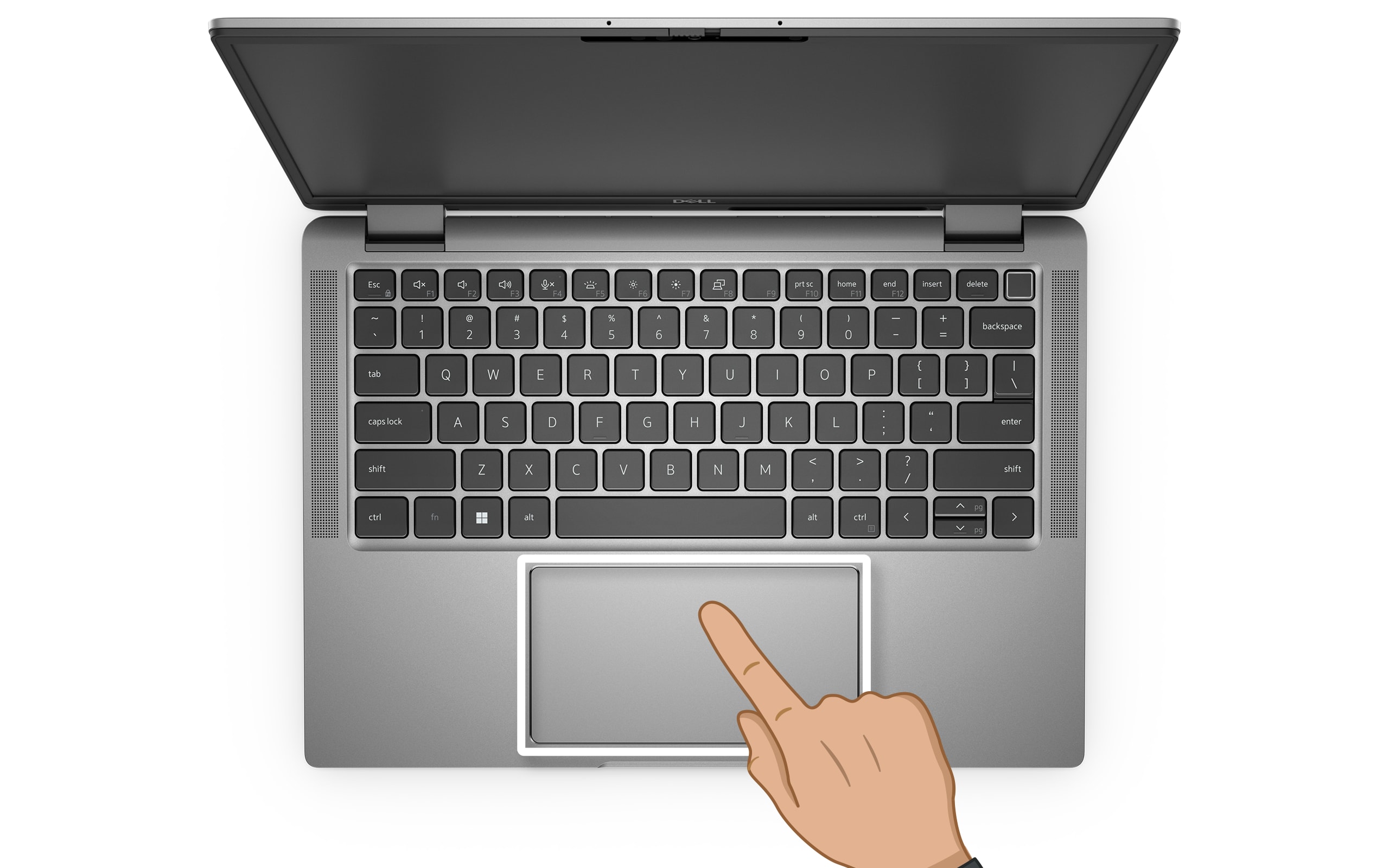
Why Your Laptop Touchpad May Stop Working and the Complete Guide to Fixing It
One of the most frustrating problems laptop owners encounter is when the built-in touchpad suddenly stops responding. Since the touchpad is usually the main way to interact with the system, especially when a mouse isn’t available, this issue can feel like your entire device has been crippled. Fortunately, in most cases, the problem isn’t permanent. Touchpads can stop working for a variety of reasons: simple dirt buildup, an incorrect setting, outdated drivers, or, in rare cases, physical hardware failure. In this guide, we’ll go step by step through every possible cause and solution, explaining not just what to do but why each step matters.
To illustrate, we’ll use a Dell Inspiron 3525 running Windows 10 Lite as our reference machine, but the same instructions are almost identical for Windows 11. If you’re a MacBook user, some of the ideas apply as well, though the interface and terminology differ slightly.
Step 1: Basic Checks Before Advanced Fixes
Start with the simplest possibilities. First, reboot your laptop. This can resolve temporary software glitches or conflicts between devices. If the touchpad still fails, clean its surface. Use a soft cotton pad with a small amount of isopropyl alcohol. Dirt, grease, or sticky residue can interfere with finger recognition and make it seem like the hardware is failing.
If those quick fixes don’t help, it’s time to move deeper into system settings.
Step 2: Confirm the Touchpad is Detected
Open the Windows Start menu and go to Settings → Devices → Touchpad. If you don’t have a working mouse, press Win + I to open Settings. Then activate keyboard-based cursor control by pressing Shift + Alt + Num Lock. A confirmation beep will signal that your numeric keypad can now act as a mouse: the number 5 replaces the left-click button, while numbers 1-9 control cursor movement. To disable this mode, press the same key combination again.
Within the touchpad settings, check if there’s a box labeled “Disable touchpad when mouse is connected.” If it’s ticked, your touchpad may be deliberately turned off whenever an external mouse is plugged in. Uncheck it if you want both devices active.
Check in Device Manager
If you don’t see the option, dive deeper. Go to Advanced Options → Hardware tab and confirm if the touchpad is listed. In the Device Manager (you can open it by typing “manager” in the Start search bar), expand the category Mice and other pointing devices. If the touchpad is listed and shows “This device is working properly,” then the hardware is fine, but it may have been disabled via a keyboard shortcut.
Manufacturers often provide shortcuts to toggle touchpads quickly. The exact combination varies:
- Acer – Fn + F7
- Asus – Fn + F9 or Fn + F7
- Dell – Fn + F5 or Fn + F3
- Lenovo – Fn + F8 or Fn + F5
- Samsung – Fn + F5
- Sony – Fn + F1
- Toshiba – Fn + F5
If your laptop matches one of these brands, try pressing the key combo to re-enable the touchpad instantly.
Step 3: Update or Reinstall the Touchpad Driver
If the touchpad doesn’t appear in Device Manager, or it’s listed as an “Unknown device,” the issue is likely driver-related. Drivers are small pieces of software that allow Windows to communicate with the hardware. Without the right driver, the system simply doesn’t recognize your touchpad.
Automatic Update
In Device Manager, right-click your touchpad entry under Mice and other pointing devices, then open the Driver tab. Choose Update Driver and select Search automatically for updated driver software. Windows will attempt to fetch the correct version from its database and install it.
Manual Update
If automatic search fails, download the driver directly from your laptop manufacturer’s official support page. Never use third-party driver sites – they often provide outdated or unsafe files. Search for “touchpad driver” along with your laptop brand name (e.g., “Dell Inspiron 3525 touchpad driver”).
Each major brand has a dedicated driver support portal:
- Dell – Dell Support
- Acer – Acer Support
- Asus – Asus Support
- HP – HP Customer Care
- Lenovo – Lenovo Drivers
- Samsung – Samsung Support
- Sony – Sony Support
- Xiaomi – Mi Global Drivers
Download the latest driver, run the installer, and restart your laptop. After reboot, test the touchpad again.
Step 4: Use a System Restore Point
If updating drivers doesn’t help, the problem may come from a system change – perhaps a recent Windows update or newly installed program caused a conflict. Windows creates restore points automatically, which act like snapshots of your system configuration. Mac OS users can rely on Time Machine for similar functionality.
To roll back to a point where your touchpad was functioning, go to Control Panel → Recovery → Configure system restore. Select a restore point dated before the touchpad issues began, then restart your system. Keep in mind that documents created after the restore point will remain, but newly installed applications and system changes may be lost.
Step 5: Consider Hardware Failure
If none of the software fixes restore functionality, hardware failure is a likely cause. Touchpads can break due to worn-out ribbon cables, damaged connectors, or faulty sensors. At this point, visiting a service center is the safest option, particularly if your laptop is still under warranty.
Replacing a touchpad yourself is possible but risky. It involves ordering the correct replacement part, carefully disassembling your laptop, disconnecting cables, and sometimes heating the adhesive beneath the touchpad with a heat gun or hair dryer. One mistake can melt the plastic surface or damage the motherboard. Unless you are comfortable with delicate repairs, leave it to professionals.
Typical service center costs vary: basic diagnostics are often free, minor repairs such as fixing cable fasteners may cost around 300 ₽, replacing a button or cable about 500 ₽, while replacing the entire touch panel can range anywhere from 1,000 ₽ to 15,000 ₽ depending on the brand and model.
Final Checklist
- Restart and clean your touchpad.
- Check if the touchpad is enabled in settings and Device Manager.
- Try the manufacturer-specific keyboard shortcut to toggle it.
- Update or reinstall drivers from the official website.
- Roll back the system using a restore point.
- If all else fails, replace the touchpad or seek professional repair.
By following these steps, most laptop owners can restore their touchpad without spending money. In cases where hardware replacement is required, understanding the process helps you decide whether to attempt the repair yourself or trust a service center. Either way, you avoid unnecessary panic and approach the issue systematically.
1 comment
tried updating driver, still not working… guess service center it is 😩