Apple has officially released iOS 26, and while the update is filled with many visual refinements and subtle design improvements, the spotlight feature that is already turning heads is the brand-new 3D Spatial Wallpapers. This addition transforms ordinary lock screens into dynamic, layered canvases that seem to breathe life into personal photos, bringing a level of depth and immersion that feels futuristic yet familiar to iPhone users.
At the heart of this experience is Apple’s continued focus on Liquid Glass, the design language first teased at WWDC 2025. 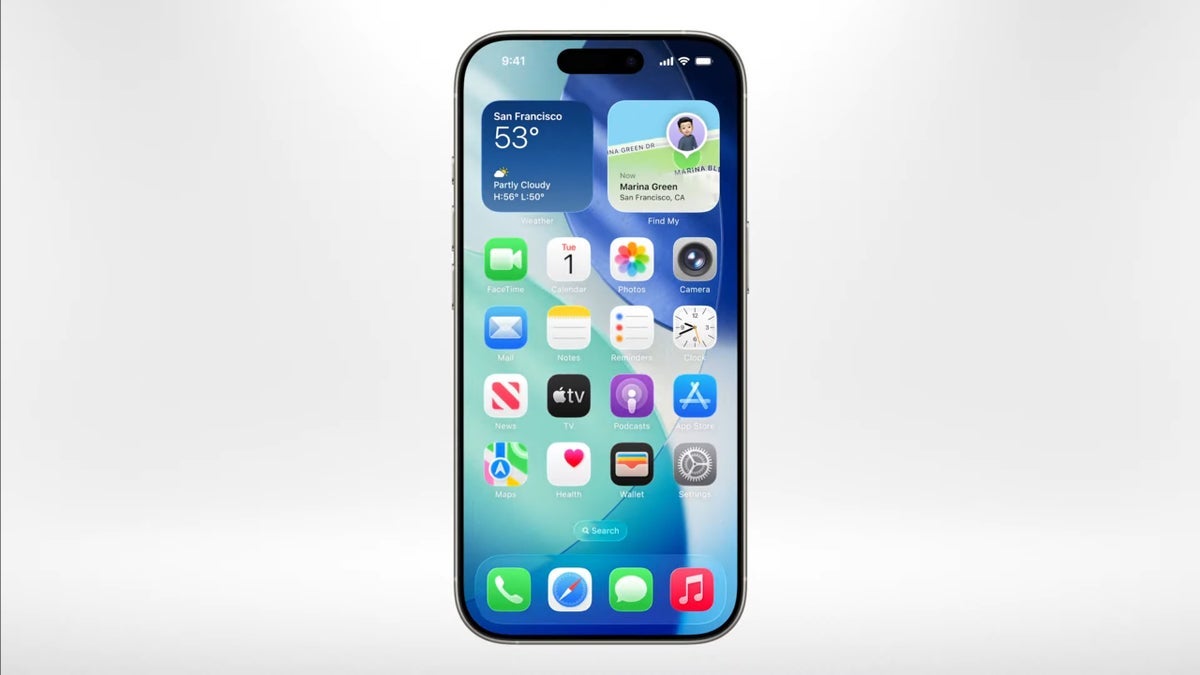
The concept relies on flowing animations and reflective textures that make the interface feel both fluid and premium. Combined with Spatial Wallpapers, the result is a lock screen that doesn’t just display an image but interacts with the way you hold and move your phone.
What makes Spatial Wallpapers special?
Unlike traditional static images, these wallpapers employ a clever parallax illusion. When you tilt or slightly shift your iPhone, the photo seems to have depth: the subject in the foreground gently moves at a different pace than the background. The outcome is a three-dimensional effect that can make landscapes feel vast, portraits more striking, and everyday snapshots unexpectedly engaging. It’s like giving your wallpaper a touch of augmented reality without requiring any additional apps.
How to enable Spatial Wallpapers in iOS 26
Setting it up is straightforward but requires some thought when choosing your image. Not every photo is suitable, since the feature relies on defined depth and clear separation between foreground and background. For best results, users should pick portraits, images with strong contrast, or landscapes with layered scenery.
Here’s the step-by-step setup:
- Long-press your lock screen to open customization mode.
- Tap the “+” (Add New) button.
- Choose a photo from your gallery that has depth elements.
- At the bottom, tap on the “3D” or “Spatial” toggle to activate the effect.
- Add widgets if you’d like, then confirm by tapping “Add.”
- Finally, select “Set as Wallpaper Pair” to apply it across your lock and home screens.
Once set, tilting your iPhone will immediately reveal the illusion. The background subtly shifts behind the main subject, making it feel like you’re peeking into another dimension.
Important details to keep in mind
While the feature is widely accessible, there are a few caveats. The 3D effect won’t appear if Low Power Mode is turned on, or if you have reduced motion enabled for accessibility reasons. And although it technically works on many devices, the effect shines brightest on the latest iPhones – specifically iPhone 13 and newer – thanks to their advanced processing and display technologies.
Users should also remember that certain photos simply won’t translate well. Flat images with little contrast or busy group shots might not display any noticeable depth. Apple’s software is smart, but the raw material matters.
Why iOS 26 feels like a design milestone
Between the Spatial Wallpapers and the Liquid Glass aesthetic, Apple is clearly unifying its devices under a bold new visual identity. The animations flow smoothly, the transitions feel more polished, and even small touches like widget placement or wallpaper responsiveness add to the sense that the iPhone is evolving into a more personal, customizable device.
For many users, iOS 26 might be remembered as the version that finally made the iPhone lock screen not just functional but fun. It’s not just about checking the time anymore – it’s about enjoying a miniature interactive canvas every time you pick up your phone.
As Apple continues to refine its ecosystem, this update shows how much potential lies in small changes that elevate the everyday experience. Spatial Wallpapers may sound like a cosmetic feature, but for many, it will redefine the look and feel of their iPhone in a way that feels refreshingly new. With iOS 26, Apple once again proves that the lock screen can be more than a static background – it can be art in motion.