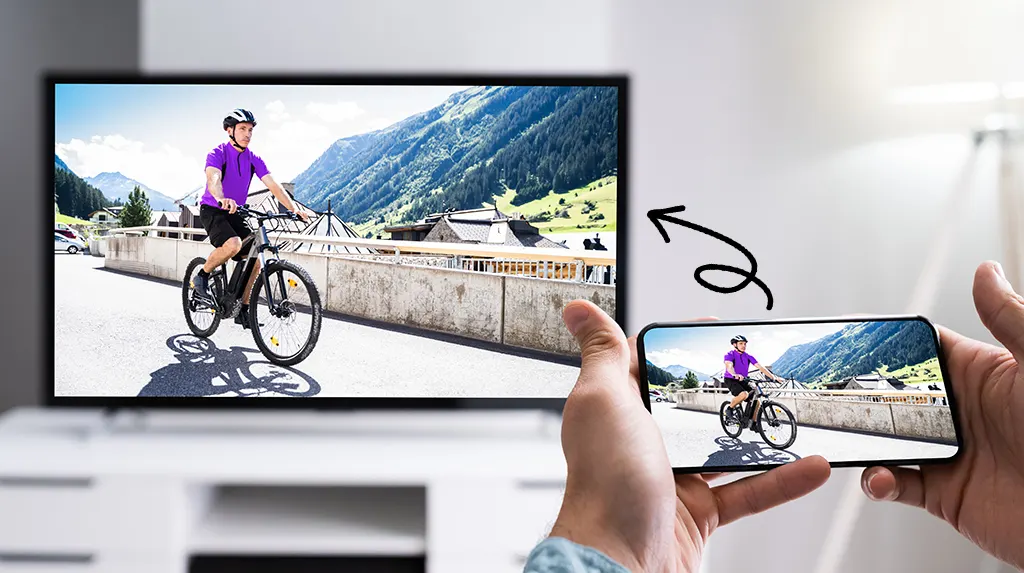
How to Watch Movies From Your Phone on TV: Complete Guide for iPhone and Android Users
In an age where smartphones have become our personal cinemas, cameras, and entertainment hubs, the question of how to move that small-screen magic onto a big TV screen is more relevant than ever. Whether you want to share vacation photos with friends, binge-watch YouTube videos, stream Netflix, or even mirror your gaming session, there’s no need to fumble with flash drives, awkward TV browsers, or clunky remotes. Modern smartphones and televisions offer a wide range of wireless and wired tools that make sharing content seamless. This guide explains in detail the different ways to broadcast movies, photos, or any content from your phone to a TV, with options for both iOS and Android users, as well as solutions for older devices.
AirPlay: The Go-To Option for iPhone Owners
For those in Apple’s ecosystem, the easiest way to transfer an image or video from an iPhone to a TV is through AirPlay. Introduced as far back as the iPhone 5, AirPlay is now standard across iOS devices. This feature allows you to wirelessly duplicate your iPhone screen or stream directly from apps like Photos, YouTube, and Apple TV.
The essential requirement is that both your iPhone and your television are connected to the same Wi-Fi network. However, not every TV is AirPlay-compatible. Some brands like Samsung, LG, and Sony integrate AirPlay into their smart TVs. For example, models such as the Samsung UE70AU7100UXRU explicitly list AirPlay compatibility. To verify support, check the TV’s network settings, read the manual, or attempt a direct broadcast from your iPhone.
Launching AirPlay is straightforward. On iPhones with Face ID, swipe down from the upper-right corner to access the Control Center. For devices with a physical Touch ID button, swipe up from the bottom edge. From there, tap the Screen Mirroring button. A list of available devices will appear – simply choose your TV. On the TV screen, you’ll see a four-digit code, which you must input on your iPhone to establish a secure connection. Once entered, your iPhone display is duplicated on the big screen.
AirPlay goes beyond just mirroring. If you’re inside the Photos app, you can open an image, tap the Share icon, choose AirPlay, and select your TV. Similarly, in YouTube, a rectangle-shaped icon lets you transfer playback to your television instantly. Importantly, if you lock your phone or minimize YouTube, the broadcast continues uninterrupted, letting you multitask while content plays.
Chromecast: The Android Equivalent
Android users have their own solution: Chromecast. Originally a standalone dongle, Chromecast is now embedded in most smart TVs and Android devices. Its core function is to allow supported apps – Netflix, YouTube, Google Photos, and many others – to stream content wirelessly to your TV. If an app supports Chromecast, you’ll see a small rectangular icon, similar to AirPlay’s button, usually at the top or bottom of the screen.
To use Chromecast, launch a compatible app, tap the rectangle icon, and select your TV from the list of available devices. Within seconds, your TV will begin streaming the video or displaying the photo you’ve selected.
Chromecast has both strengths and limitations. On the positive side, streaming continues even if you switch apps, check messages, or play games on your phone. This makes it more flexible than simple screen mirroring. However, Chromecast’s limitation is that it works only with supported apps – you can’t mirror your entire home screen, browser windows, or games directly. Google once offered a workaround via the Google Home app, but this application is no longer officially downloadable in some regions, such as Russia. Additionally, Chromecast does not function on iPhones, which are restricted to AirPlay.
Miracast: A Lifeline for Older Android Phones
Not everyone has the latest smartphone, and that’s where Miracast comes in. This technology, standardized in 2012, allows direct screen mirroring between a phone and a TV without relying on a router. Instead, it creates a peer-to-peer wireless connection, similar to Bluetooth but designed for video and image data.
If your Android device is running version 4.2 or newer (released in 2013), it likely supports Miracast. Likewise, most smart TVs manufactured after 2012 have Miracast built in. To test compatibility, simply attempt to start a broadcast: if it fails, your device likely doesn’t support it. To enable the connection, install a Miracast app on your phone, open it, press CONNECT, and select your TV from the available devices. Your phone’s screen should then be duplicated on the television.
Miracast is especially useful for older hardware but comes with caveats. It isn’t supported on iPhones, and some TVs (such as certain Xiaomi MiTV models) may show delays during playback, making it unsuitable for high-speed games or real-time applications. Still, for casual video streaming or photo sharing, it remains an excellent option for those with older devices.
Smart View and Tap View: Samsung’s Custom Solutions
For Samsung Galaxy users, the manufacturer provides its own twist on Miracast called Smart View. This feature is preloaded on most Galaxy phones and allows you to mirror your screen to any Miracast-enabled TV, regardless of brand. To activate Smart View, pull down the notification shade, tap the Smart View button, and choose your TV. Instantly, your screen is duplicated.
Samsung also offers Tap View, a feature exclusive to Galaxy smartphones paired with Samsung TVs. Designed for convenience, Tap View allows instant screen sharing when you physically bring your smartphone close to the television. While this sounds futuristic, in practice it may feel less useful since you must leave the couch and approach the TV. For Tap View to work, you’ll need the SmartThings app installed on your phone. This app not only enables Tap View but also provides a complete smart home management interface, letting you control your TV, lights, and other devices from a single dashboard.
To set up SmartThings, launch the app, tap the + button, and choose Device → Search nearby. Your TV should appear on the list; after selecting it, you’ll assign it to a room and confirm by entering the PIN shown on the television screen. Once configured, SmartThings gives you additional options like adjusting volume, switching inputs, or even automating routines.
For Tap View specifically, go to SmartThings settings, enable “Switch view or sound,” then bring your phone near the TV. A connection window pops up, and with a single tap, your screen is shared.
Wired Connections: HDMI as a Last Resort
What if your television predates Wi-Fi streaming or your smartphone doesn’t support wireless mirroring? In that case, a wired HDMI connection may be the fallback solution. The process involves connecting your phone directly to the TV via an HDMI cable, often requiring special adapters depending on your device type.
For Android phones with USB-C ports, a USB-C-to-HDMI adapter is required. Older devices with microUSB may need an MHL (Mobile High-Definition Link) adapter. iPhones require the official Apple Lightning Digital AV Adapter, which can be pricey compared to third-party accessories.
One major drawback of this method is compatibility: not every phone supports video output through its charging port. Unfortunately, most manufacturers don’t clearly advertise this capability, so it’s often trial-and-error. This means you could spend money on adapters that don’t work. Wired connections also reduce mobility and can clutter your setup with cables. For these reasons, HDMI should be considered a last resort.
Which Method Should You Choose?
With so many options, how do you pick the best one? Here’s a quick breakdown:
- AirPlay: Best for iPhone users with compatible TVs. Seamless integration, minimal setup, works across apps.
- Chromecast: Ideal for Android users, especially if you primarily use supported apps like Netflix or YouTube.
- Miracast: Perfect for older Android phones or TVs lacking newer wireless standards. Works offline, but may lag.
- Smart View: Samsung’s easy solution for Galaxy devices, with bonus features through SmartThings.
- Tap View: Convenient for Samsung-to-Samsung setups but requires physical proximity to the TV.
- HDMI cable: A universal fallback when wireless options fail, though less convenient and potentially unreliable.
In practice, AirPlay, Chromecast, and Smart View stand out as the most user-friendly. Tap View is more of a novelty, while Miracast and HDMI cater to older setups. Ultimately, the right choice depends on your smartphone model, your TV’s capabilities, and your personal preference for simplicity versus flexibility.
Final Thoughts
Streaming from your phone to your TV no longer requires technical expertise or complicated workarounds. With modern tools like AirPlay, Chromecast, and Smart View, it often takes no more than two taps to transform your living room into a private cinema. Even if you own older devices, Miracast and HDMI provide reliable alternatives. As smartphone and TV technology continues to evolve, expect even smoother, faster, and more integrated sharing experiences in the near future. For now, though, you have plenty of options to sit back, relax, and enjoy your favorite movies, photos, and games on the biggest screen in your home.
2 comments
smart view on my galaxy lags sometimes 😅
chromecast is cool but only for some apps, kinda annoying