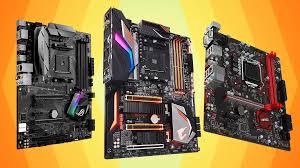
How to Choose the Right Motherboard for Your PC Build
When building or upgrading a computer, people often obsess over the processor or the graphics card, pouring most of their budget into those headline components. But experienced builders will tell you that the foundation of any reliable, efficient, and upgradable system is the motherboard. It acts as the central hub, connecting the CPU, RAM, graphics card, storage, and all the peripheral devices. If the motherboard is weak or outdated, even the most powerful graphics card or processor will be hamstrung. That’s why choosing a good motherboard isn’t just about compatibility – it’s about planning for stability, performance, and future-proofing.
In this extended guide, we’ll break down everything you need to know about selecting the right motherboard for your next PC build – from understanding sizes and sockets to comparing chipsets, expansion slots, memory compatibility, and even subtle details like network interfaces and storage standards. The aim is not only to help you buy a board that works but to give you the tools to make the smartest choice for your budget and long-term needs.
Why the Motherboard Matters
Think of the motherboard as the city infrastructure of your PC. Roads connect different neighborhoods; power lines deliver electricity; fiber cables carry data. The CPU, GPU, and RAM are like skyscrapers or factories – they only function properly if the infrastructure supports them. A cheap, limited board can bottleneck powerful components, leading to wasted potential. Worse, poor-quality boards often lack long-term support, meaning you may need to replace the whole platform sooner than expected. Choosing wisely upfront saves headaches later.
Motherboard Sizes: Choosing the Right Form Factor
One of the first choices you’ll face is the size of your motherboard. This doesn’t just affect how many slots or connectors you’ll get – it also determines what kind of PC case you need and how much expandability you’ll enjoy.
- XL-ATX (34.5 × 26.2 cm): Oversized boards designed for workstation-level or enthusiast builds. They often feature three or four PCIe slots for multiple graphics cards, up to eight RAM slots, and a large number of M.2 connectors. They are overkill for most home users but necessary for specialized workstations that require huge memory pools or multiple GPUs for rendering or scientific work.
- E-ATX (30.5 × 33 cm): Slightly smaller than XL-ATX, still aimed at high-performance builds. These can include up to eight RAM slots but often settle for four. Gamers who demand maximum expandability sometimes go this route, but average users rarely need them.
- ATX (30.5 × 24.4 cm): The most common form factor and the standard for most gaming and productivity builds. ATX boards typically offer four RAM slots, one to three PCIe x16 slots, and multiple M.2 and SATA connections. They balance size, price, and expandability well, which is why they dominate the market.
- Micro-ATX or mATX (24.4 × 24.4 cm): A compact option that still provides decent expandability. Usually two to four RAM slots, one or two PCIe x16 slots, and fewer M.2 connectors. A good compromise if you want a smaller case but don’t want to sacrifice too much flexibility.
- Mini-ITX (17 × 17 cm): The smallest mainstream option. Perfect for ultra-compact builds or living-room PCs. Limited to two RAM slots and one PCIe x16 slot, with one or two M.2 connectors. Ideal for minimalist gaming rigs or office machines, but not for expansion-heavy use cases.
Rule of thumb: if your case supports ATX, you can always fit smaller boards like Micro-ATX or Mini-ITX. Larger boards like E-ATX and XL-ATX, however, require larger cases designed specifically for them.
Sockets: Matching the CPU and the Board
The socket is where your processor plugs into the motherboard, and it’s one of the most crucial compatibility points. Intel and AMD use different sockets, and even within the same brand, sockets evolve every few years.
Current common sockets:
- AMD: AM4 (previous gen) and AM5 (latest gen)
- Intel: LGA 1200 (older), LGA 1700 (current mainstream), LGA 1851 (next-gen)
Always check your processor’s socket specification. For example, an Intel Core i7-13700K requires an LGA 1700 motherboard. Even if two CPUs come from the same family, they may require different sockets across generations. If you already own the processor, use a utility like CPU-Z to check its socket type in Windows. For a new build, pick the CPU first, then choose a motherboard that matches it.
Chipsets: The Brain Behind the Board
The chipset is the logic system that manages data flow between the CPU, memory, and peripherals. It determines what features your PC supports – overclocking, multiple GPUs, number of USB and PCIe lanes, and more. Here’s a breakdown of the major consumer chipset lines:
Intel:
- B & H series: Entry to mid-range, no CPU overclocking, limited PCIe lanes. Great for office or budget gaming builds.
- Z series: Enthusiast chipsets with support for overclocking CPUs and RAM. Standard for gaming PCs that push performance.
- X series: High-end workstation chipsets with support for multiple CPUs or GPUs, designed for engineers, 3D artists, and scientific computing.
AMD:
- A series: Affordable boards for office and home use, no overclocking support.
- B series: Balanced option with some overclocking ability, ideal for mid-tier gaming builds.
- X series: Enthusiast-level, unlocked overclocking, and advanced features – AMD’s counterpart to Intel’s Z series.
- TRX series: Designed for Threadripper CPUs, used in extreme workstation builds requiring massive core counts and memory.
Compatibility depends not just on the socket but also the chipset. For example, a Ryzen 9 7950X processor with an AM5 socket requires not just an AM5 board but one with a compatible chipset such as X670. Sometimes, support for newer CPUs comes via BIOS updates, so check if the motherboard ships with the necessary firmware or you’ll need to flash it with a compatible CPU first.
Essential Features to Look For
When browsing motherboard specs, you’ll encounter a sea of acronyms and ports. Here’s how to prioritize what really matters:
PCIe Slots
Peripheral Component Interconnect Express (PCIe) slots connect GPUs, SSD adapters, Wi-Fi cards, and more. The key things to know are size (x1, x4, x8, x16) and version (currently up to PCIe 5.0).
- x1: For small add-in cards like Wi-Fi or sound cards.
- x4 and x8: For expansion cards and SSD adapters.
- x16: For graphics cards.
If you’re buying a high-end GPU like NVIDIA’s RTX 5080, you’ll want an x16 PCIe 5.0 slot. Older slots will bottleneck performance. And if you plan to use multiple GPUs, make sure the board supports Nvidia SLI or AMD CrossFire.
Memory (RAM) Slots
Check how many slots the motherboard has and what standard it supports. DDR4 and DDR5 are the current standards, but they’re not cross-compatible. DDR5 is faster and future-proof, while DDR4 remains affordable and widely available.
Frequency support is also key. If you buy high-speed RAM but the board only supports lower frequencies, the memory will run at the board’s limit. Always verify both the maximum capacity (e.g., 128 GB or 256 GB) and the supported frequency ranges.
Storage Options
SATA ports: For older HDDs and SATA SSDs, usually capped at 600 MB/s transfer rates. Make sure you have enough ports if you plan multiple drives.
M.2 slots: The modern standard for SSDs. Speeds vary depending on PCIe generation support:
- PCIe 2.0 x2: ~1 GB/s
- PCIe 3.0 x4: ~4 GB/s
- PCIe 4.0 x4: ~8 GB/s
- PCIe 5.0 x4: ~16 GB/s
M.2 drives also differ in key type (B, M, or B+M) and size (like 2280, meaning 22 mm wide and 80 mm long). Check both before buying drives.
USB Ports
Look at both the quantity and type of USB ports. USB-A and USB-C connectors coexist, but speeds differ:
- USB 2.0: Basic peripherals like keyboards and mice.
- USB 3.2 Gen 2: Up to 10 Gbps, for modern peripherals and storage.
- USB 3.2 Gen 2×2: Up to 20 Gbps.
- Thunderbolt 4 (Type-C): Up to 40 Gbps, mostly premium boards.
Networking
Every board has at least one Ethernet port, usually 1 Gbps. Premium boards offer 2.5 Gbps or even 10 Gbps, useful for NAS setups or fast local transfers. Integrated Wi-Fi and Bluetooth are increasingly common but can be added later with PCIe cards if missing.
Other Considerations
- BIOS/UEFI support: A modern, user-friendly BIOS makes tweaking easier.
- Power delivery: More VRMs (voltage regulator modules) means better support for high-power CPUs and overclocking.
- Audio: Onboard sound varies; audiophiles may want dedicated sound cards.
- Durability: Features like reinforced PCIe slots or heatsinks for M.2 drives extend component lifespan.
Checklist for Buying a Motherboard
- Verify the form factor fits your case.
- Match the socket with your CPU.
- Choose a chipset that supports your needs (gaming, office, workstation).
- Ensure enough PCIe, M.2, and SATA slots for all components.
- Check RAM support: standard (DDR4/DDR5), frequency, and maximum capacity.
- Evaluate connectivity: USB versions, Ethernet, Wi-Fi, Bluetooth.
- Confirm BIOS support for your CPU if it’s a recent release.
Final Thoughts
Selecting the right motherboard is more than just ticking boxes – it’s about envisioning how you’ll use your PC in the next three to five years. A balanced build means pairing the right CPU and GPU with a motherboard that won’t limit them and leaves space for future upgrades. Whether you’re building a budget-friendly gaming rig, a sleek living-room PC, or a workstation for professional workloads, the motherboard is your platform for success. Don’t shortchange it.
1 comment
still think mini-ITX is the coolest, small box big power