Imagine a scenario: you’ve just bought a new monitor, and along with it, you find two cables designed to transmit the video signal: HDMI and DisplayPort. In the event that no cables are included, rest assured, most monitors and video cards support both HDMI and DisplayPort connectors. This makes it essential to know which cable to choose for the best display quality. 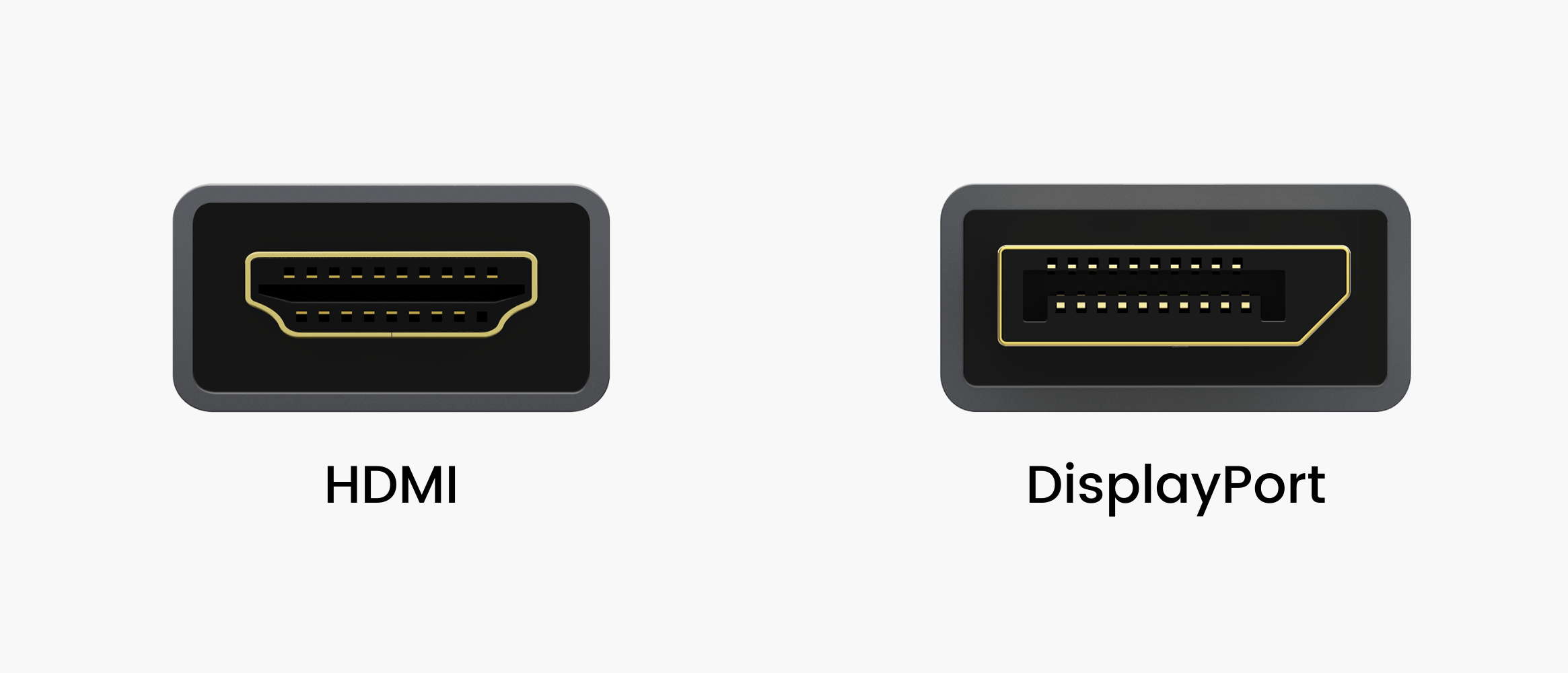
Let’s dive into the details of both connectors and determine which one is better suited for your needs.
First, let’s look at the key differences. Choosing the right cable for your setup depends on several factors, including the bandwidth, the supported resolution and refresh rates, and additional features. HDMI and DisplayPort may both serve as video transmission solutions, but they are designed with different goals and use cases in mind.
HDMI, or High Definition Multimedia Interface, is the more universal of the two options. It was developed primarily for multimedia devices, which means it not only handles video and audio signals but also has the capacity to carry data, including Ethernet. This versatility allows HDMI to be used across a wide range of devices, such as TVs, laptops, projectors, and even radios. As a result, HDMI has become the go-to choice for most home setups, especially when connecting devices like gaming consoles or streaming boxes.
However, HDMI isn’t without its limitations. When it comes to the highest video quality, HDMI doesn’t quite hit the mark in comparison to DisplayPort. For instance, the most common HDMI cables typically support 4K video at 60 Hz, which is more than sufficient for everyday use, but falls short if you’re looking for higher resolutions or refresh rates. It’s worth noting that some premium HDMI cables, such as the HDMI 2.1 standard, offer more robust support, with the ability to transmit 4K at 120 Hz and even 8K at 60 Hz. However, these cables are still not widely available, and they tend to be more expensive than the typical HDMI cables. Moreover, for monitors with refresh rates above 60 Hz, HDMI 2.1 uses Display Stream Compression (DSC) to ensure smooth performance, but this technology is still not universally supported across devices, making HDMI 2.1 a somewhat niche solution.
Additionally, if you are a gamer or someone who values smooth visuals, you may run into problems with HDMI when it comes to frame synchronization. Technologies like FreeSync and G-Sync, which are designed to eliminate screen tearing during gaming, do not work seamlessly with HDMI. While FreeSync was introduced in HDMI 2.1, it only functions properly with certain monitors, and G-Sync support is still virtually non-existent in HDMI.
In contrast, DisplayPort was developed specifically for monitors, and this is where its strength lies. DisplayPort excels in high-resolution, high-refresh-rate video transmission, which is why it’s a preferred choice for professional and gaming monitors. For example, DisplayPort 1.3 and 1.4 versions can transmit 8K video at 30 Hz, and with Display Stream Compression, this can go up to 120 Hz. DisplayPort 2.0, the latest version, even offers 8K video at 85 Hz without the need for compression. This makes DisplayPort the better choice if you’re working with a high-performance display or need the best image quality possible.
Another advantage of DisplayPort is its support for both FreeSync and G-Sync technologies, regardless of which version of DisplayPort you’re using. This flexibility is a huge benefit for gamers or anyone who values tear-free visuals. Furthermore, DisplayPort enables multi-monitor setups. A single DisplayPort connection can support up to six monitors through a special hub, whereas HDMI would require separate connectors for each monitor.
However, DisplayPort does have some limitations. First, it is not as universally supported as HDMI. Older monitors, particularly those that are five years or older, are unlikely to have a DisplayPort connector. Additionally, DisplayPort cables are not as long-lasting over distance as HDMI cables. The maximum recommended cable length for DisplayPort is only about 3 meters, while HDMI cables can be extended to lengths of up to 30 meters with the use of repeaters.
So, how do you decide which connector is right for you? Here’s a handy checklist:
When to use HDMI:
- You need a cable that can handle multiple types of devices, such as a TV, monitor, or media player.
- You don’t need to work with high-resolution video or fast refresh rates, as 1440p at 60 Hz is often enough for most users.
- Your setup doesn’t require FreeSync or G-Sync support, or your monitor doesn’t have these technologies.
- You need a long-distance connection, as HDMI cables can stretch up to 30 meters with repeaters.
- You’re working on a budget. HDMI cables are generally more affordable than DisplayPort options.
When to use DisplayPort:
- You’re purchasing a cable specifically for a monitor, particularly if you need higher resolutions or refresh rates.
- You’re working on tasks like video editing, gaming, or graphic design, where performance and visual quality matter.
- Your PC has a modern graphics card, as DisplayPort has been widely adopted on video cards since 2016.
- You need FreeSync or G-Sync support for smoother gaming or video playback.
- You need to connect multiple monitors. DisplayPort can handle up to six monitors with a special hub.
In conclusion, if you have a budget setup or you’re using a monitor with a resolution lower than 1440p, HDMI is likely sufficient for your needs. It’s versatile, inexpensive, and works well for most basic multimedia devices. However, if you’re building a high-performance PC, working with Ultra HD displays, or need cutting-edge technologies like FreeSync and G-Sync, DisplayPort is the better choice. While DisplayPort may come at a higher price point, the extra performance it offers makes it well worth the investment for demanding tasks.
5 comments
Hi igobyte.com,
Your website is not ranking well on Google.
I can help you in putting your website on the Google’s top-3 Rank and getting more customers Guaranteed.
Would you like to me seo proposal your business site
I can send over a detailed proposal with affordable packages.
Warm regards,
Nikita
Thanks for the tips! I had no idea about the multi-monitor setup with DisplayPort
I’ve always used HDMI, but now I’m thinking about upgrading to DisplayPort for my gaming rig! 😅
Not all HDMI cables are the same. Make sure you get the right one if you’re into 4K gaming!
LOL, G-Sync and FreeSync on HDMI? Never knew that was a thing 😆