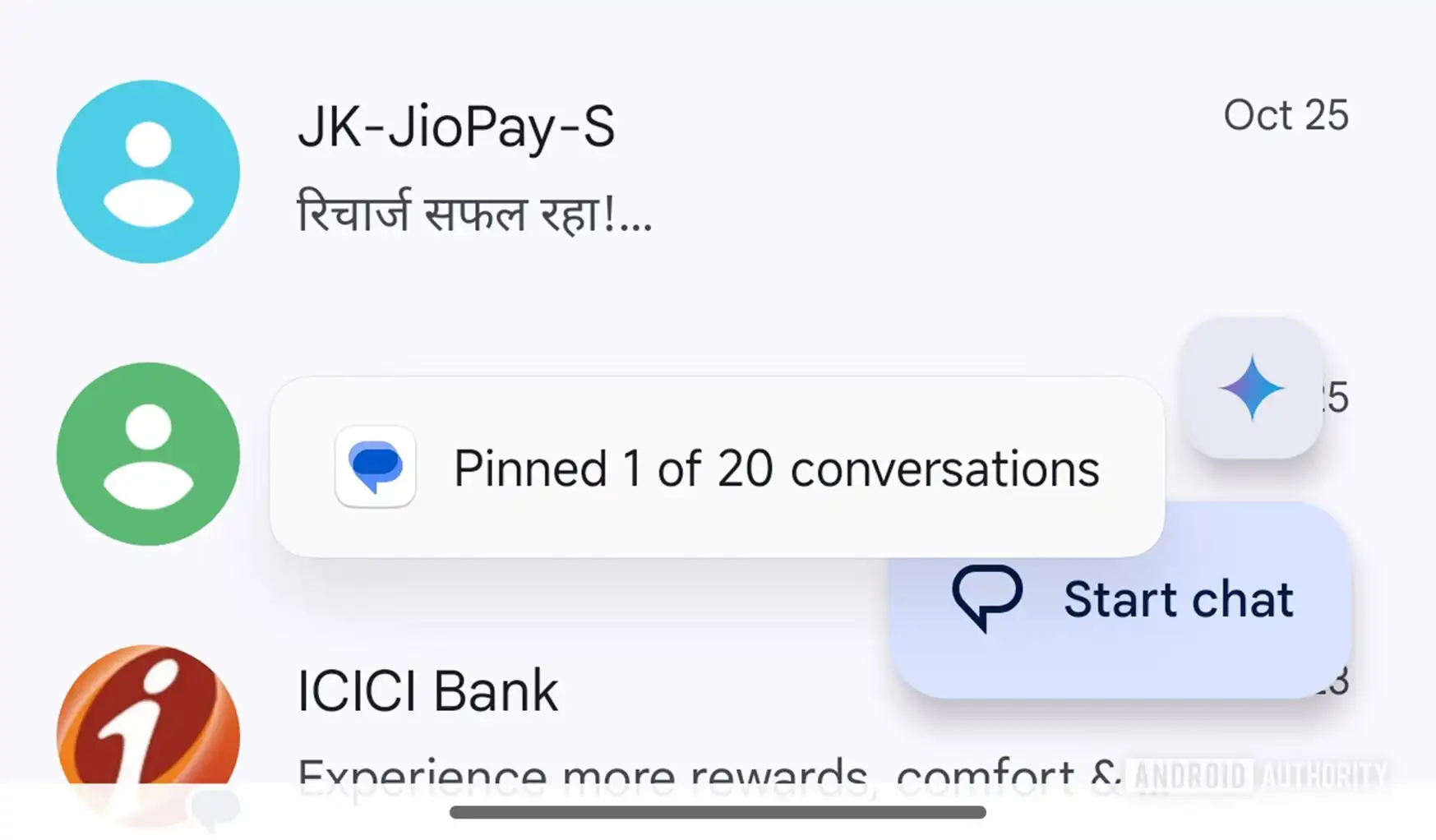
Google Messages raises the pin limit to 20 chats – great for busy inboxes, tricky if you don’t manage it
Google Messages is quietly getting a quality-of-life boost: you can now keep up to 20 conversations pinned at the top of your inbox. That’s a steady climb from the early days (three), through five, then ten, and now twenty. The idea is simple: the threads you care about most should always be within thumb’s reach, no matter how many other texts, OTPs, promo blasts, or group memes flood in.
For anyone juggling work, family, deliveries, and group planning, this is a genuinely helpful tweak. Pinned threads act like a control panel for your day: your partner, the team chat, the daycare, the rideshare driver, the landlord, the client who always pays late – all living above the noise.
How pinning works (and a quick refresher)
- Open the Messages app.
- Tap and hold a conversation.
- Select Pin. The chat jumps to the top of your list and stays there.
You can repeat that up to twenty times, and unpin the moment a thread stops being “mission critical.” It’s frictionless and reversible, which is exactly what a priority system should be.
The upside – and the catch
Doubling the cap is great; however, twenty pinned threads is a lot of real estate. If you pin broadly and rarely prune, the top of your inbox can become a second inbox – long enough that fresh, unpinned messages may slide out of view. That increases the risk of missing something important, which ironically undercuts the reason pinning exists.
Think of pins as front-row seats. If every seat is front row, none of them are. A little discipline goes a long way.
Pro tips to keep pinned chats useful
- Limit pins to roles, not people. One family chat, one work group, one key client – not every friend you text this week.
- Audit weekly. Unpin anything that hasn’t mattered in the last few days. Re-pin later if it becomes active again.
- Mute noise, don’t pin it. If a group is chatty but low-priority, mute instead of pinning so it doesn’t constantly jockey for attention.
- Archive and search. Use archive for completed threads; the excellent search in Messages will find them instantly when you need them.
What this says about Google Messages today
Beyond pinning, Google Messages has been steadily layering features that push it beyond a minimalist SMS app. We’ve seen user profiles, playful screen and reaction effects, customizable bubbles, and deeper Gemini AI tie-ins alongside RCS upgrades. Each addition is small on its own, but together they change the app’s character – from “simple texting” to a modern, feature-rich hub.
That evolution will please power users who live inside group threads and coordinate daily life via RCS. Others may worry that Messages is picking up bloat. The pin increase lands right on that line: it’s useful, but only if you manage it intentionally.
Who benefits most from 20 pins?
- Parents and caregivers: school, daycare, coaches, carpools – each needs fast access.
- Small business owners and freelancers: active clients, suppliers, and on-site teams can occupy the top row while projects are live.
- Heavy travelers and shoppers: delivery updates, airline notifications, and hotel confirmations are easy to keep visible during the trip, then unpinned after.
A balanced takeaway
Raising the pin limit doesn’t reinvent Google Messages, but it does respect how people actually use it: a lot, for a lot of different things. Treat pins like a living shortlist, not a scrapbook, and the new 20-chat ceiling becomes a productivity boost rather than a clutter trap. As Messages keeps growing – with profiles, visual flourishes, and Gemini-powered smarts – the users who stay intentional about organization will get the most out of it.
Bottom line: enjoy the flexibility, curate the list, and let the rest of your inbox breathe.