Gboard’s Trending GIF Finder and Flick Typing: Level Up Your Messages
If you text as much as the rest of us, you already know that the right GIF can carry more energy than three paragraphs of explanation. The trick, of course, is sending a reaction that feels fresh, relevant, and perfectly timed. That’s where Gboard’s latest improvements come in: a new trending GIF shortcut fueled by Tenor, plus a smarter way to enter symbols and numbers called Flick. Together, they make your phone’s keyboard feel more like a creative studio than a set of keys.
Where to find GIFs on Android right now
There are two quick paths. In Google Messages, tap the circular Plus button to the left of the text field and choose GIFs. You’ll land in a familiar search view stocked with suggestions and a search bar. Alternatively, place your cursor in any text field so Gboard appears, tap the four-square icon, and then tap GIF. Either route drops you into the same Tenor-powered library where you can search or scroll through timely categories.
Even before you type, you’ll see suggested terms to spark ideas. That’s great when you’re moving fast, but it doesn’t always guarantee you’re picking what everyone is actually sharing today. Enter Gboard’s new trending shortcut.
The new trending GIF button: what it is and why it matters
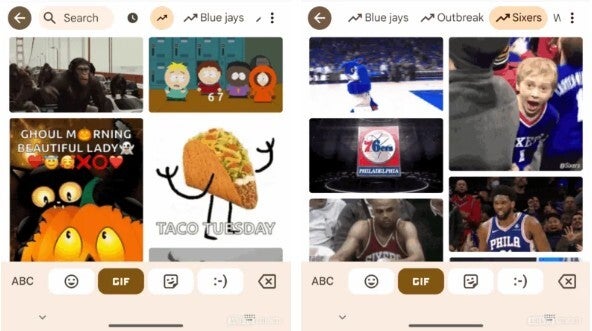
In recent Gboard builds (notably a 16.3 beta), the GIF search bar includes a small button with an upward-sloping trendline icon next to the clock that opens your GIF history. Tap the trendline and you’ll see a curated, real-time list of what’s hot across Tenor. It’s the difference between guessing which GIF might land and knowing which ones are already circulating widely.
During testing, suggestions like Halloween eve and Blue Jays surfaced – a reminder that trends reflect current cultural moments, sports buzz, and seasonal events. You don’t have to hunt for the perfect phrase; Gboard elevates it for you. The benefit is obvious: you avoid stale, overplayed loops and hit the conversation with something that feels current.
Step-by-step: sending a timely GIF with Gboard
- Open your messaging app (Google Messages works great).
- Tap the text field to summon Gboard.
- Tap the four-square icon, then choose GIF.
- In the GIF panel’s search bar, tap the trendline icon for Tenor’s trending feed.
- Browse or use the search field to refine. Tap the GIF you want, and it drops into your message draft instantly.
Prefer starting from Google Messages? No problem. Tap the Plus button, open GIFs, and search or browse just the same. When the keyboard slides up, you can still dive into the Gboard GIF picker for that trendline view. The experience is consistent and intentionally lightweight.
Rollout reality: why you might not see the button yet
Some users on compatible versions report that the trending button appears later than expected. That’s usually a server-side rollout detail rather than a problem with your phone. If you’re on the right Gboard version and still don’t spot the trendline icon, keep an eye out – once it flips on for your account, it just shows up in the GIF search bar beside the history clock.
Master symbols and numbers with Flick
Switching gears from fun to speed: Gboard’s Flick is a deceptively simple superpower. Instead of long-pressing a letter to reveal the hinted symbol or number, you briefly touch the key and swipe downward to insert that secondary character instantly. It’s the same mapping as the familiar long-press method, but much faster once muscle memory clicks.
How to enable Flick
- Open Gboard, then tap the gear icon to open Settings.
- Go to Preferences > Shortcuts.
- Enable "Flick keys to enter symbols" (the description reads: "Touch a key and pull down to enter its hinted symbol").
From there, try a few examples:
- Swipe down on R to produce an equals sign.
- Swipe down on the number row or punctuation-hinted keys to quickly insert digits and symbols without switching layouts.
- Stay within the key’s boundary while swiping – slide too far and you might trigger glide typing instead.
Expect a short learning curve. If your swipes sometimes become unintended words, adjust Flick sensitivity in Settings. Higher sensitivity makes the gesture easier to trigger but also increases the chance of accidental inputs; lower sensitivity demands clearer motion but reduces misfires. After a day or two, most people find Flick dramatically speeds up entering passwords, equations, or anything peppered with punctuation.
Other recent Gboard upgrades worth toggling
- AI proofreading and tone control: Gboard can suggest fixes for typos and grammar and even help you reframe a sentence to sound more formal, casual, expressive, or concise. It’s like having a lightweight editor sitting inside your keyboard.
- Adjustable key size: You can scale the key font from 85% to 200% of the default. Bigger keys reduce fat-finger mistakes; smaller keys give you more screen space.
- Cleaner layout option: Prefer a wider spacebar? Hide the period and comma keys for a streamlined row that favors thumb accuracy.
Best practices for faster, cleaner texting
- Combine habits: Use the trending button when your message needs personality, and Flick when the conversation turns technical or number-heavy.
- Lean on search terms: If a trend doesn’t cover your vibe, search synonyms or moods (e.g., "facepalm," "slow clap," "mind blown"). Tenor’s results are broad and surprisingly specific.
- Use history smartly: The clock icon opens your recently used GIFs – handy for recurring jokes in group chats.
- Tune sensitivity and size: Dial Flick sensitivity and key size until your thumbs feel at home.
The bottom line
Gboard is quietly evolving into a tool that helps you express more and type less. The trending GIF button takes the guesswork out of being topical, while Flick compresses a once-slow symbol workflow into a quick swipe. Add in AI proofreading, tone adjustments, and layout tweaks, and you’ve got a keyboard that meets you where you text – fast, fun, and flexible. If you want your messages to feel current and your typing to feel effortless, these are the switches to flip today.
2 comments
Proofreading saved me from sending a very bad autocorrect. thx gboard
Tried Flick for 10 mins and now I can’t go back. So much faster