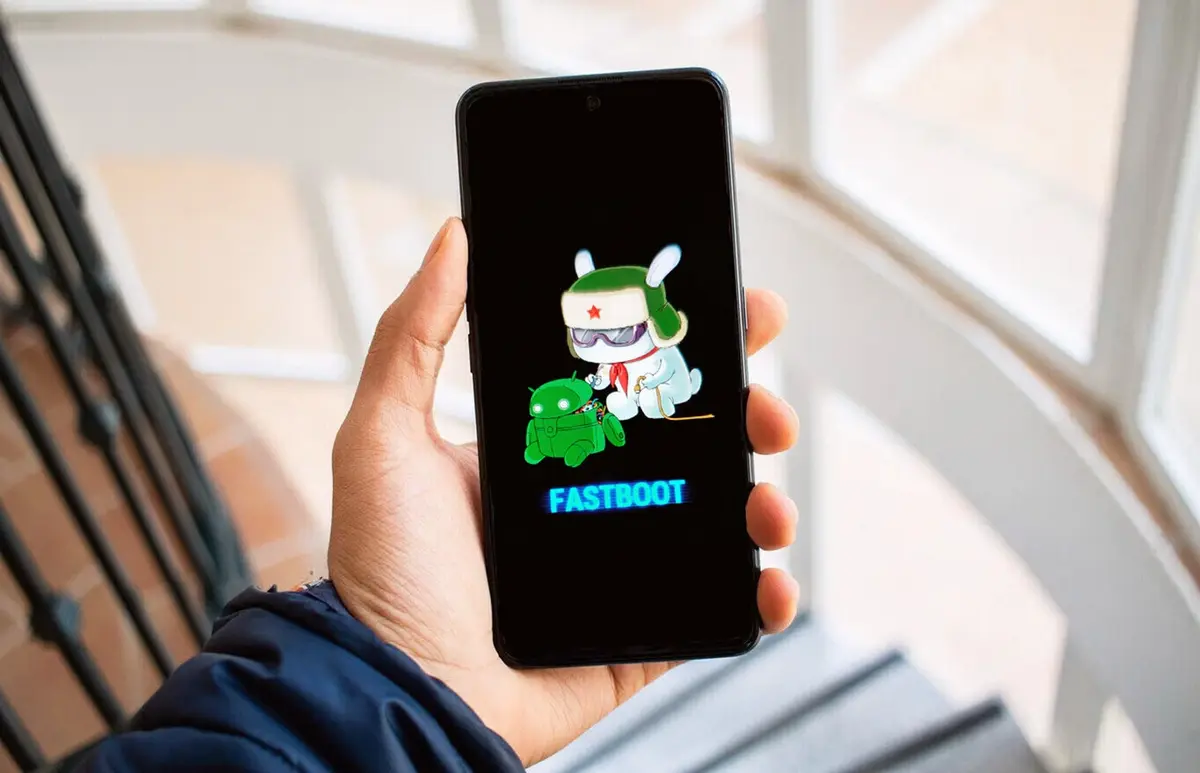
Fastboot Mode on Android: A Complete Guide to Understanding, Using, and Troubleshooting It
For many Android enthusiasts and everyday smartphone owners, there eventually comes a point when the device doesn’t behave as expected – whether that’s due to a failed update, bloated software, or the desire to try something new beyond what the manufacturer provides. In such cases, one term often surfaces: Fastboot mode. It’s a low-level diagnostic and developer environment that gives you far more control over your smartphone than the regular Android interface ever could. Yet it can be intimidating if you don’t know what it is, what it’s for, or how to exit it once you’re there.
This article explores Fastboot in depth: what it is, how it functions, what you can achieve with it, the methods to access it on different brands of devices, the commands you can use once inside, and – most importantly – how to safely exit or recover if something goes wrong. By the end, you’ll have a comprehensive understanding of how to navigate Fastboot mode and how to leverage its power without falling into common pitfalls.
What Exactly Is Fastboot Mode?
At its core, Fastboot (also called Bootloader mode on some devices) is a protocol that allows direct communication between your smartphone’s internal storage partitions and a computer. Unlike the usual Android operating system, which hides critical system files from users for safety, Fastboot removes those barriers. It’s designed for developers and advanced users who want to debug, flash (install) new system images, or unlock deeper system-level features. But ordinary users can benefit from it too – especially when the phone is stuck in a boot loop, cluttered with unremovable apps, or no longer receiving updates.
Fastboot isn’t just another smartphone menu like Recovery mode. It’s more powerful, functioning at a lower level. When you connect your Android device to a PC via USB while in Fastboot, the computer recognizes the phone not as an external drive but as a part of the system environment. You then interact with it via command-line tools. This makes it possible to do things like rewrite partitions, unlock the bootloader, or replace stock firmware with custom alternatives.
Fastboot mode is widely available across Android manufacturers. On Samsung devices, it’s often referred to as Download Mode or Odin Mode. On Xiaomi phones, it still retains the traditional Fastboot branding, often accompanied by the iconic cartoon mascot of a rabbit tinkering with a robot. But you won’t find Fastboot on iPhones – Apple’s ecosystem is closed and doesn’t offer a direct equivalent.
What Can You Do with Fastboot?
Once in Fastboot, you essentially gain keys to doors normally locked in the Android world. Some of the most common and practical uses include:
- Unlocking the OEM Bootloader: This is the first step toward deeper customization. Unlocking allows you to install new firmware or recovery images. Without it, you’re restricted to the software ecosystem sanctioned by the phone’s manufacturer.
- Root Access: Rooting is akin to having administrator privileges on a computer. With root rights, you can modify system files, block intrusive ads, remove bloatware apps that the manufacturer doesn’t allow you to uninstall, and even enable features like background YouTube playback. Rooting also makes battery-saving tweaks possible that aren’t available through standard settings.
- Custom Recovery Installation: Stock Recovery only lets you reset the phone, install official updates, or troubleshoot. A custom Recovery such as TWRP (Team Win Recovery Project) or ClockworkMod adds a wealth of options – flashing third-party ROMs, creating full system backups, or experimenting with themes and mods.
- Installing Custom Firmware: If your manufacturer has stopped providing Android updates, you don’t have to be stuck forever with an outdated OS. Through Fastboot, you can install custom ROMs – unofficial but optimized versions of Android. These can extend the lifespan of old hardware, improve battery efficiency, and sometimes even perform better than stock versions. For instance, LineageOS and Pixel Experience are popular custom firmware options. However, remember that this step can void your warranty and carries the risk of bricking your phone if done incorrectly.
In short, Fastboot is the gateway to turning an ordinary smartphone into a highly customizable device. But with great power comes great risk – users must tread carefully.
How to Enter Fastboot Mode on Different Smartphones
Getting into Fastboot mode depends on the manufacturer and even the device generation. The general rule is to start with the phone powered off, then press a specific combination of buttons. Here’s how it works for popular brands:
Samsung
On older Samsung devices with a physical Home button, hold Power + Home + Volume Down simultaneously until you see the screen change. For newer Samsung devices without a Home key, the process is slightly different:
- Connect a USB cable to your PC (but not yet to your phone).
- Press and hold both Volume Up and Volume Down buttons on the phone.
- While holding, connect the other end of the USB cable to the phone.
- A warning screen will appear – release the buttons.
- Press Volume Up once to confirm, and the device will boot into Download/Fastboot mode.
Xiaomi
Power off the device, then hold Power + Volume Down. When you see the Fastboot logo (or the rabbit with the robot on older models), release the keys.
Nexus/Pixel
Hold Power + Volume Down until the Fastboot text appears.
Lenovo
Hold Volume Down, then press Power for 2–3 seconds. Release Power but keep holding Volume Down until Fastboot appears.
LG
Connect your device to a powered-on PC via USB. Then hold Power + Volume Down for five seconds, release both, and reconnect. The device should enter Fastboot.
Other Devices or Custom ROMs
If your device runs custom firmware, Fastboot is often selectable directly from the reboot menu. Otherwise, if none of the above methods work, consult your manufacturer’s instructions or search specifically for your model.
Controlling the Device in Fastboot Mode
Once you’re in Fastboot, the real work begins. You’ll need a PC utility called ADB (Android Debug Bridge) to send commands. Here’s how to prepare:
- Install ADB: Download the official ADB toolkit or a simplified utility like ADB Run. Extract it to a convenient folder on your computer.
- Enable Developer Options: On your phone, go to Settings → About Phone and tap the Build Number multiple times until the system confirms you’re a developer.
- Enable USB Debugging: In the new Developer Options menu, activate USB Debugging. This allows your computer to communicate with the phone on a deeper level.
After connecting via USB, open a command prompt (or PowerShell) in the ADB folder and test connectivity using:
fastboot devicesIf successful, your phone’s serial number will appear, confirming the connection.
Key Fastboot Commands
fastboot devices– lists connected devices.fastboot reboot– reboots into standard Android.fastboot reboot recovery– boots into Recovery mode.fastboot oem unlock,fastboot flashing unlock– unlocks the bootloader (varies by brand).fastboot oem lock,fastboot flashing lock– relocks the bootloader after modifications.
Note: Some manufacturers like Huawei, Honor, and Oppo have tightened restrictions in recent years, disabling official bootloader unlocking. For these devices, Fastboot’s customization potential is limited.
Exiting Fastboot Mode
Sometimes users enter Fastboot unintentionally, either by pressing the wrong keys or after a failed update. Seeing the black screen with cryptic text can be alarming, but in most cases exiting is simple:
- Soft Reboot: Hold the Power button for 20+ seconds. The phone should restart normally. If it shuts down instead, wait a moment and turn it back on manually.
- ADB Reboot: If connected to a PC, use
fastboot rebootto return to Android.
When a Device Won’t Exit Fastboot
In rare cases, a phone may remain stuck in Fastboot due to corrupted system files, failed rooting, or incompatible apps. If that happens, a factory reset is usually the last resort. This requires entering Recovery mode, which varies slightly by manufacturer:
- Google: Hold Power + Volume Down to open the menu. Select Recovery Mode using Volume keys and confirm with Power.
- LG: Hold Power + Volume Down until the logo appears, release, then press Power again quickly. Choose Recovery Mode.
- OnePlus: Hold Power + Volume Down until Recovery appears.
- Samsung: Depending on the device, combinations include Power + Home + Volume Up, Power + Bixby + Volume Up, or Power + Volume Up alone. If you see “No Command,” hold longer or repeat steps.
- Sony: Power on, then press both Volume keys when the logo appears. Some models require holding Power until vibrations, then switching to Volume Up.
- Huawei/Xiaomi/ASUS: Hold Power + Volume Up until Recovery appears.
Once in Recovery, navigate with Volume buttons and confirm with Power. Choose Wipe data / Factory Reset. This deletes everything – contacts, media, apps, and settings – restoring the device to its original firmware. While inconvenient, it often revives devices that seem beyond repair.
Final Thoughts
Fastboot mode is one of Android’s most versatile tools. For power users, it unlocks nearly unlimited customization: from rooting to installing fresh firmware and reviving dead devices. For casual users, simply knowing how to exit or reset in Fastboot can prevent unnecessary panic. That said, because of its potential risks – voiding warranties, bricking devices – users should proceed carefully and back up data before experimenting.
Think of Fastboot as both a safety net and a toolkit: it’s there to help you when the normal system fails, but it also gives you the freedom to rebuild your device into something entirely your own.
1 comment
warning: you WILL void warranty if you mess with bootloader