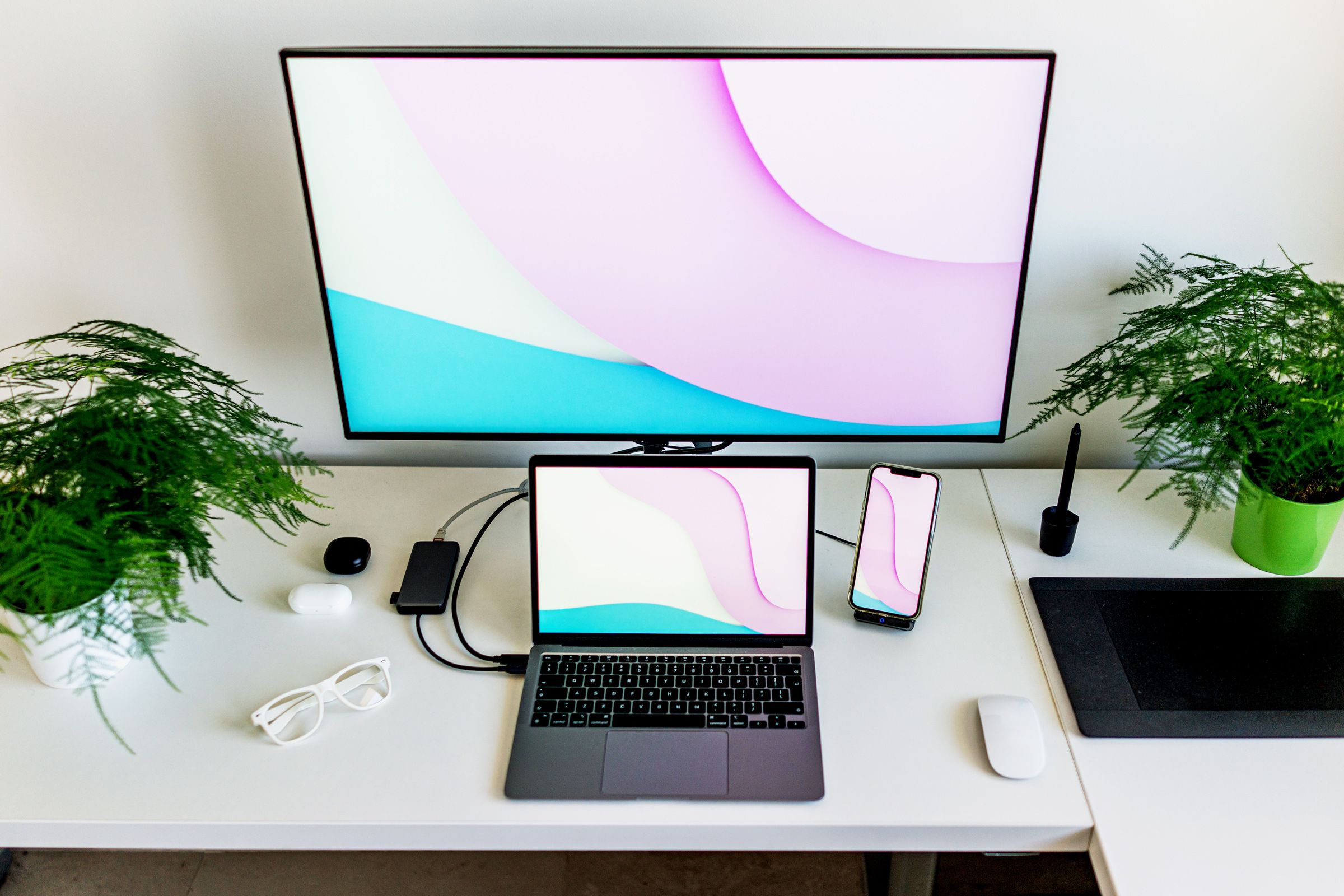
How to Connect a Laptop to a Desktop Computer and Share Files Easily
Working between a laptop and a desktop computer can be frustrating if the two devices are not directly connected. Many people today rely on cloud storage services, but not everyone has access to high-speed, unlimited internet, and some simply prefer to keep their documents, projects, or family photos private on local machines. For those situations, building a direct connection between your laptop and desktop is a reliable and flexible solution.
In this article, we’ll explore several practical ways to connect your laptop to a desktop computer (and vice versa) so you can share files, use storage resources, and maintain smooth workflows without flash drives or constant copying. We’ll cover the advantages and disadvantages of each method, step-by-step configuration tips, and expert insights on ensuring security and efficiency. Whether you’re working in a home office, a rented apartment, or simply want seamless access to your data across devices, these techniques can help.
Why Not Just Use the Cloud?
It might seem tempting to rely on Google Drive, OneDrive, Dropbox, or similar services. However, when internet speeds are slow, limited, or unreliable, cloud syncing can become a headache rather than a convenience. Uploading a large video project or high-resolution photos can take hours, and constant syncing may consume valuable bandwidth. On top of that, cloud storage raises privacy concerns – some people simply do not want personal or sensitive files on third-party servers. A local connection, on the other hand, gives you full control and immediate access to your files with no dependency on external networks.
Option 1: Connecting via Ethernet Cable
One of the oldest yet still highly reliable ways to connect two computers is through a direct Ethernet cable. This method is often referred to as using a twisted pair cable or patch cord. It provides a stable, fast connection that isn’t affected by wireless interference. However, it only works well if your devices are located close enough together.
Step-by-step setup:
- Purchase a ready-made Ethernet cable of sufficient length, or crimp one yourself if you’re comfortable with DIY cabling.
- Plug the cable into the Ethernet ports of both your laptop and your desktop computer.
- Assign each computer a unique name and unique IP address, but ensure both belong to the same workgroup. This is crucial to avoid conflicts and connection errors.
- On Windows, you can adjust these settings by right-clicking This PC (or Computer) in File Explorer, selecting Properties, and then navigating to Advanced system settings. From there, change the computer name and workgroup details under the Computer Name tab.
- Set static IP addresses manually. For example, on the desktop assign 192.168.1.2 and subnet mask 255.255.255.0. On the laptop, use 192.168.1.3 with the same subnet mask.
- Test the connection by opening Command Prompt (Win+R, type
cmd) and typingping 192.168.1.3from the desktop. If successful, you’ll receive reply messages. If not, disable the firewall temporarily and retry.
Once the basic link is established, go into Network and Sharing Center and enable network discovery and file sharing. You may also need to disable password-protected sharing depending on your configuration. With everything in place, your computers will see each other and allow file access.
Option 2: Setting Up a Wireless Connection
If running a cable across rooms isn’t practical – for example, in a rented apartment where you can’t easily hide wires – then a wireless connection is the smarter choice. Modern Wi-Fi routers make this process simple and efficient.
Requirements: Both computers must connect to the same router. It doesn’t matter whether one uses Ethernet and the other Wi-Fi, as long as the router is the central hub.
Setup process:
- Ensure both devices are part of the same workgroup and have unique names and IP addresses, as explained in the wired method.
- On both computers, open Network and Sharing Center, click Change advanced sharing settings, and enable network discovery and file sharing.
- You can also create a hosted wireless network via Command Prompt. Open
cmdand type:netsh wlan set hostednetwork mode=allow ssid=YourNetworkName key=YourPassword. Then start the network withnetsh wlan start hostednetwork. - Once the network is live, the second computer can connect by clicking the Wi-Fi icon in the taskbar and selecting your custom network.
With this setup, your laptop and PC will communicate over Wi-Fi, allowing you to share folders, documents, and media without cables stretched across the room.
Option 3: Configuring Shared Access
After establishing a wired or wireless link, you still need to decide which files and folders to share. Windows gives you flexibility: you can share entire drives, individual folders, or even specific files. Here’s how:
- Right-click the folder (or drive) you want to share, select Properties, and then go to the Sharing tab.
- Click Advanced Sharing, check Share this folder, and then configure permissions. You can choose read-only access or grant full permissions so files can be edited from the other device.
- Repeat the same on both devices depending on whether you want two-way file sharing or just one-way access.
Once done, the shared folders will appear under Network in File Explorer, allowing you to seamlessly browse, copy, or modify files across machines.
Practical Considerations
1. Security: Keep in mind that enabling file sharing opens a door between devices. If you’re on a public Wi-Fi or shared network, disable sharing when not in use. Always use strong passwords and avoid exposing sensitive folders unnecessarily.
2. Performance: A direct Ethernet cable usually provides the fastest file transfer speeds, often faster than external drives. Wi-Fi connections depend on router quality and distance. For large transfers, Ethernet is preferable.
3. Usability: If both computers are not always powered on, remember that shared folders are only accessible when the host device is running. For constant availability, consider a dedicated Network Attached Storage (NAS) device – though that is a more advanced and costly solution.
Expert Take: Ethernet vs. Wireless
For stationary setups where both devices remain close to each other, Ethernet is king. It’s inexpensive, fast, and secure. For flexible use – such as moving your laptop around the kitchen or living room – Wi-Fi is far more convenient, even if slightly slower. In fact, many users prefer a hybrid setup: the desktop remains wired to the router for stability, while the laptop connects via Wi-Fi for mobility. Both still reside on the same network, so file sharing works seamlessly.
Final Thoughts
Whether you’re a remote worker juggling multiple devices, a student working on projects across machines, or simply someone who doesn’t want to keep running back and forth with a USB drive, creating a direct link between your laptop and desktop will save time and reduce frustration. You can choose between Ethernet cables for maximum speed and reliability, or wireless connections for freedom and flexibility. Once set up, shared access makes it simple to open and modify files across devices without hassle.
These solutions don’t require advanced technical skills – just a bit of patience and careful setup. Once configured, you’ll enjoy seamless access to your files and no longer worry about forgetting an important document on the other computer.
1 comment
wifi is fine but ethernet sooo much faster trust me