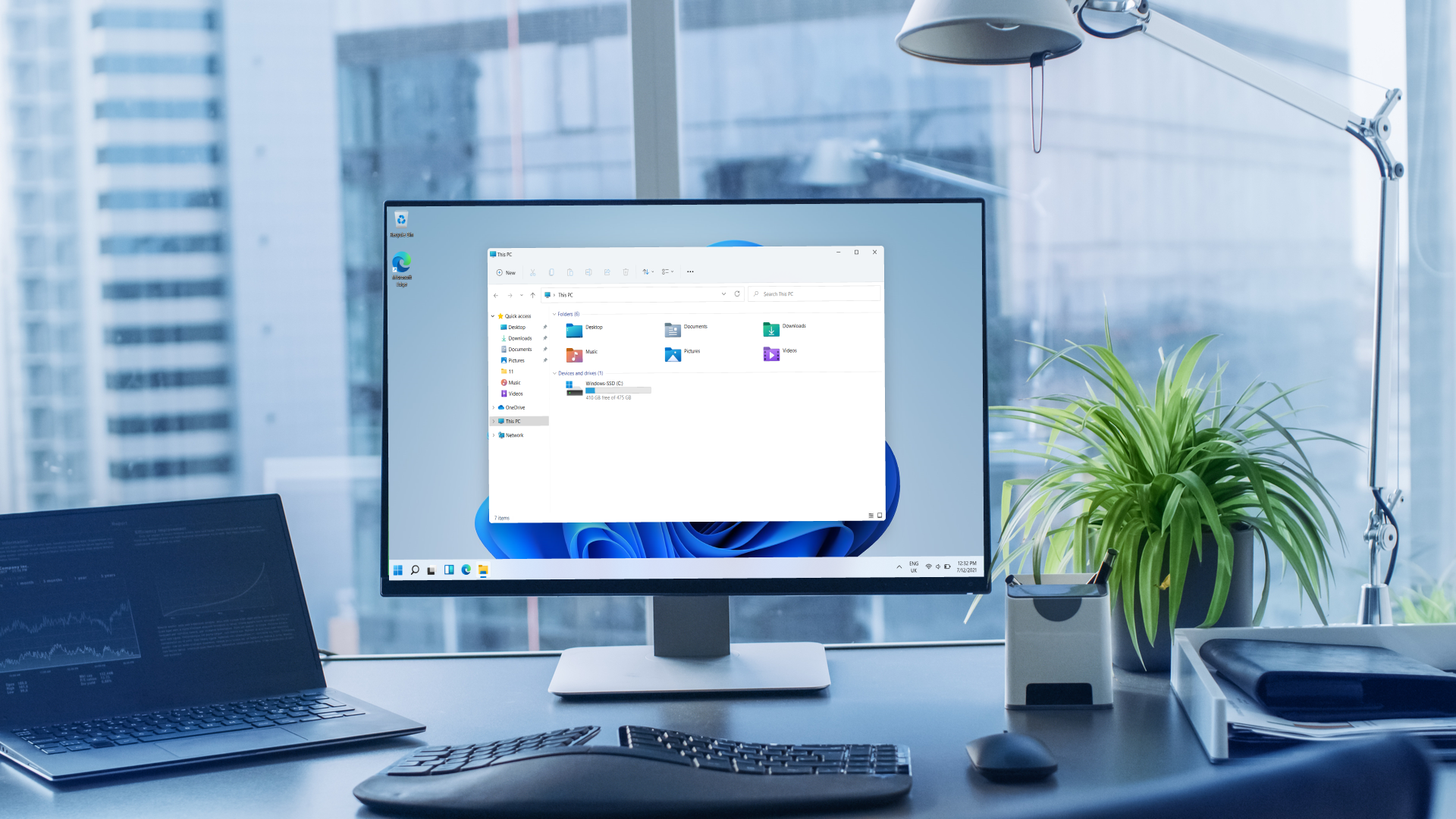
How to Clear Memory on a Computer: Safe, Built-In Ways to Free Up Disk Space on Windows and macOS
Running out of space creeps up on everyone – photos multiply, installers pile up, and temporary files linger long after an app is closed. The good news: both Windows and macOS include robust, built-in tools that reclaim gigabytes without extra software or risk. In this guide, you’ll learn a practical, step-by-step playbook to clear disk space quickly, then set up lightweight automation so your drives stay healthy over time.
Before we dive in, a quick clarification. When people say “clear memory,” they often mix up RAM (short-term working memory for apps) and disk storage (your files, photos, apps). This article focuses on disk storage – freeing space on your hard drive or SSD. It improves stability, smooths updates, and reduces the chance of slowdowns caused by near-full drives.
Fast wins you can do on any computer
- Empty the Trash/Recycle Bin. Deleted files aren’t gone until the bin is emptied. Check it first – you may free gigabytes instantly.
- Clean the Downloads folder. Installers, PDFs, and archives accumulate here. Sort by size or date and remove what you don’t need.
- Review the Desktop. Many people park huge files and screen recordings on the Desktop, which typically lives on the system drive.
- Find large files. A handful of big videos or virtual machine images can eclipse thousands of small documents. Locating these quickly is the most efficient path to major savings.
With those quick wins covered, let’s go deeper on each platform using only built-in tools.
Windows 10/11: Free up space the safe way
1) Disk Cleanup (classic, fast, reliable)
Open File Explorer, right-click your system drive (usually C:), and choose Properties → Disk Cleanup. Let it calculate, then review the checklist. You’ll typically see big gains from Recycle Bin, Temporary files, Thumbnails, and Delivery Optimization files. Click OK to remove them.
Next, select Clean up system files. This elevated pass adds items like Windows Update Cleanup and old Device driver packages. These are safe to delete and can reclaim several gigabytes. If you recently installed a feature update and everything works, clearing these is often the single largest win.
2) Storage settings and Storage Sense (automate the boring parts)
Go to Settings → System → Storage. Toggle Storage Sense on, then open its configuration. You can tell Windows to automatically:
- Delete temporary files your apps aren’t using.
- Empty the Recycle Bin after a defined period (e.g., 30 days).
- Clear items in the Downloads folder older than X days (optional; many people prefer to manage Downloads manually – choose what suits you).
- Convert files stored in OneDrive to “online-only” when not opened for a while, keeping the cloud copy but freeing local disk.
Enable the schedule and pick a cleanup cadence (e.g., every week or month). With this set, routine house-keeping happens quietly in the background.
3) Uninstall space-hungry apps
Open Settings → Apps → Installed apps (or Apps & features on Windows 10). Sort by Size. Uninstall what you don’t use – especially old games, trial suites, and duplicate utilities. If an app lacks a clear uninstaller from the Start menu or shortcut, remove it from this list instead of hand-deleting folders.
4) Hunt down large files, fast
Open File Explorer, click This PC, then in the search box type size:>1GB (or size:>500MB if you want a broader sweep). Switch to the View tab and choose Details; click the Size column to sort descending. You’ll immediately surface big video files, virtual machines, old ISO installers, and forgotten backups. Review them carefully and delete what you no longer need.
5) Tidy common culprits
- Downloads: Remove old installers (they’re easily re-downloaded) and multi-gigabyte archives.
- Desktop: Move working files into named folders; archive finished projects.
- Pictures/Videos: Offload raw footage or duplicate exports to an external drive or cloud if you don’t need them locally.
- OneDrive: Right-click bulky folders and choose Free up space to make them cloud-only while keeping quick access.
6) Advanced (optional – read before changing)
- System Restore size: In the Start menu, search for Create a restore point. Select your system drive → Configure, then reduce the Max usage if restore points are consuming too much space. Keep some room for safety.
- Hibernation file: If you never use Hibernate, disabling it removes a file roughly the size of your RAM. This is an advanced change and best left to experienced users; if in doubt, skip it.
macOS: Clear clutter and switch on smart recommendations
1) Start with the obvious
- Empty the Trash. Control-click the Trash icon and choose Empty Trash.
- Clean Downloads. Open Finder → Downloads, sort by Size or Date Added, and remove unneeded DMGs, ZIPs, and media.
- Enable auto-empty Trash. Finder → Settings (or Preferences) → Advanced → check Remove items from the Trash after 30 days.
2) Use Storage Management recommendations
Click the Apple menu → About This Mac → Storage → Manage. You’ll see four powerful, built-in options:
- Store in iCloud: Moves Desktop and Documents to iCloud Drive and keeps only recent files locally. Great for small internal SSDs – just be mindful of your iCloud quota.
- Optimize Storage: Removes watched Apple TV movies and shows and keeps only recent email attachments. You can re-download content anytime.
- Empty Trash Automatically: Same 30-day auto-purge as in Finder settings.
- Reduce Clutter: Launches a reviewer that lists Large Files, Downloads, and other space hogs so you can inspect and delete safely.
3) Find and remove large files
Within Manage, open Review Files. Sort by size to expose videos, archives, and forgotten exports. Use Show in Finder to jump to the file’s location, then delete or move it to an external drive or a cloud folder. This one view often reveals the handful of culprits causing 80% of your storage pain.
4) Optimize Photos and iCloud Drive
- Photos: In the Photos app, open Settings → iCloud and select Optimize Mac Storage. Full-resolution originals stay in iCloud while lightweight versions remain on your Mac.
- iCloud Drive: In System Settings → Apple ID → iCloud → iCloud Drive, enable Optimize Mac Storage. macOS will keep recent files local and offload older ones automatically.
5) Uninstall unused apps
Open Applications in Finder and sort by Size. Drag apps you don’t use to the Trash (or hold an app icon in Launchpad until it jiggles, then click the “X” for App Store apps). Many gigabytes live here in rarely opened production suites or leftover trial software.
6) Clear specific hidden hogs
- Mail downloads: If you get large attachments, Mail may cache them locally. In Mail → Settings → Accounts, set attachment behavior to keep only recent downloads, or periodically remove old attachment caches.
- iPhone/iPad backups: Connect your device, open Finder, select the device in the sidebar, then click Manage Backups… and delete outdated ones.
- Time Machine local snapshots (advanced): If you use Time Machine on a laptop, macOS may keep local snapshots that consume space temporarily. Normally the system prunes them automatically – treat this as informational unless you’re an advanced user.
Organize once, save space forever
Space crises are usually a symptom of habits, not just files. A light, sustainable routine prevents future clutter:
- Adopt “inbox zero” for Downloads. Treat Downloads like a temporary inbox. File what matters; delete the rest weekly.
- Name and file deliberately. Use clear folder names (e.g., 2025-Client-Videos, Family-Photos) so you can archive or offload confidently later.
- Schedule a 15-minute monthly cleanup. On Windows, run Disk Cleanup and check Storage Sense. On macOS, open Storage Management’s Review Files and skim the Large Files list.
- Keep headroom. Aim to maintain at least 10–15% free space on your system drive; this helps performance, updates, and file caching.
- Use external or cloud storage strategically. Keep active projects local; move cold archives to an external SSD or cloud to preserve internal space.
What not to delete
Stay away from system folders you don’t recognize. Don’t randomly purge items inside Windows, Program Files, Library, or System. Avoid deleting current restore points on Windows or application support folders on macOS unless you’re certain of the impact. The tools above are designed to target safe-to-remove items – stick to them and you’ll be fine.
The bottom line
You don’t need new hardware – or third-party utilities – to reclaim space. Empty the bin, audit Downloads and Desktop, then use the built-in cleanup dashboards to remove temporary junk, large files, and stale installers. Turn on Storage Sense (Windows) or Storage Recommendations with Optimize/Reduce Clutter (macOS) to keep things tidy automatically. Do this monthly and your computer will feel lighter, updates will land smoothly, and you’ll spend far less time hunting for space when a big project arrives.
1 comment
Storage Sense is a lifesaver. Set it once and forget it