How to Choose the Right SSD: Key Parameters Explained
On the surface, selecting an SSD might seem straightforward – the bigger the storage, the better the deal. But in reality, solid-state drives differ in ways that directly affect performance, reliability, and price. Choosing wisely can save you money, prevent bottlenecks, and ensure your computer works smoothly for years. In this article, we will take a detailed look at the crucial parameters that matter when buying an SSD and explain how to understand them properly.
Why SSD Characteristics Matter
Every SSD comes with a list of specifications, and while many might look confusing, they are not just marketing fluff. These parameters determine how fast the system boots, how quickly files load, how reliable the storage will be over time, and whether the drive is even compatible with your motherboard. The six main factors that buyers should evaluate are:
- Volume (storage capacity)
- Speed (read and write performance)
- Format (physical size and design)
- Interface (connection type and bandwidth)
- Memory type (cell structure)
- Resource (endurance or lifespan)
All of these play a role, though endurance is often less critical for typical home users and more of an advantage for those working with extremely heavy workloads. Let’s break each factor down in more detail.
Storage Capacity: How Much Do You Really Need?
Capacity is measured in gigabytes (GB) or terabytes (TB), with 1 TB equal to 1024 GB. To better understand how much space you need, consider real-world usage. A Windows installation alone consumes about 30 GB, while a single Full HD movie requires between 4–8 GB. A thousand smartphone photos might take up around 20–25 GB, and modern AAA video games can easily exceed 80–100 GB per title.
For a basic home or office setup where you only run Windows, browse the web, and store documents, a 480–512 GB SSD is usually sufficient. For gamers, the minimum should be 1 TB, with 2 TB offering much more flexibility as game sizes continue to balloon. Professionals who edit video, work with 3D models, or handle large datasets should consider even larger drives to avoid running out of space.
Speed: The Performance Backbone
Speed is one of the most noticeable aspects of an SSD. It determines how fast your system boots, how quickly applications launch, and how efficiently large files are read or written. There are two types of speed measurements: read speed and write speed. Read speeds are usually higher, while write speeds lag slightly due to the way flash memory operates.
Entry-level SATA SSDs typically reach 500–600 MB/s, which is already many times faster than traditional hard drives. For everyday computing or light gaming, this is more than adequate. However, for demanding tasks like video editing, working with raw photos, or compiling code, NVMe SSDs that achieve 1500–2000 MB/s or higher are strongly recommended.
High-end models, such as the MSI Spatium M580 Frozr, push boundaries even further with read speeds up to 14,100 MB/s and write speeds up to 12,600 MB/s, making them ideal for professionals and enthusiasts who demand the absolute fastest storage. Keep in mind that SSD performance can vary depending on workload, file sizes, and how long the drive has been in use. Speed consistency is as important as peak numbers, especially if you handle very large files frequently.
Format: Physical Shape and Size
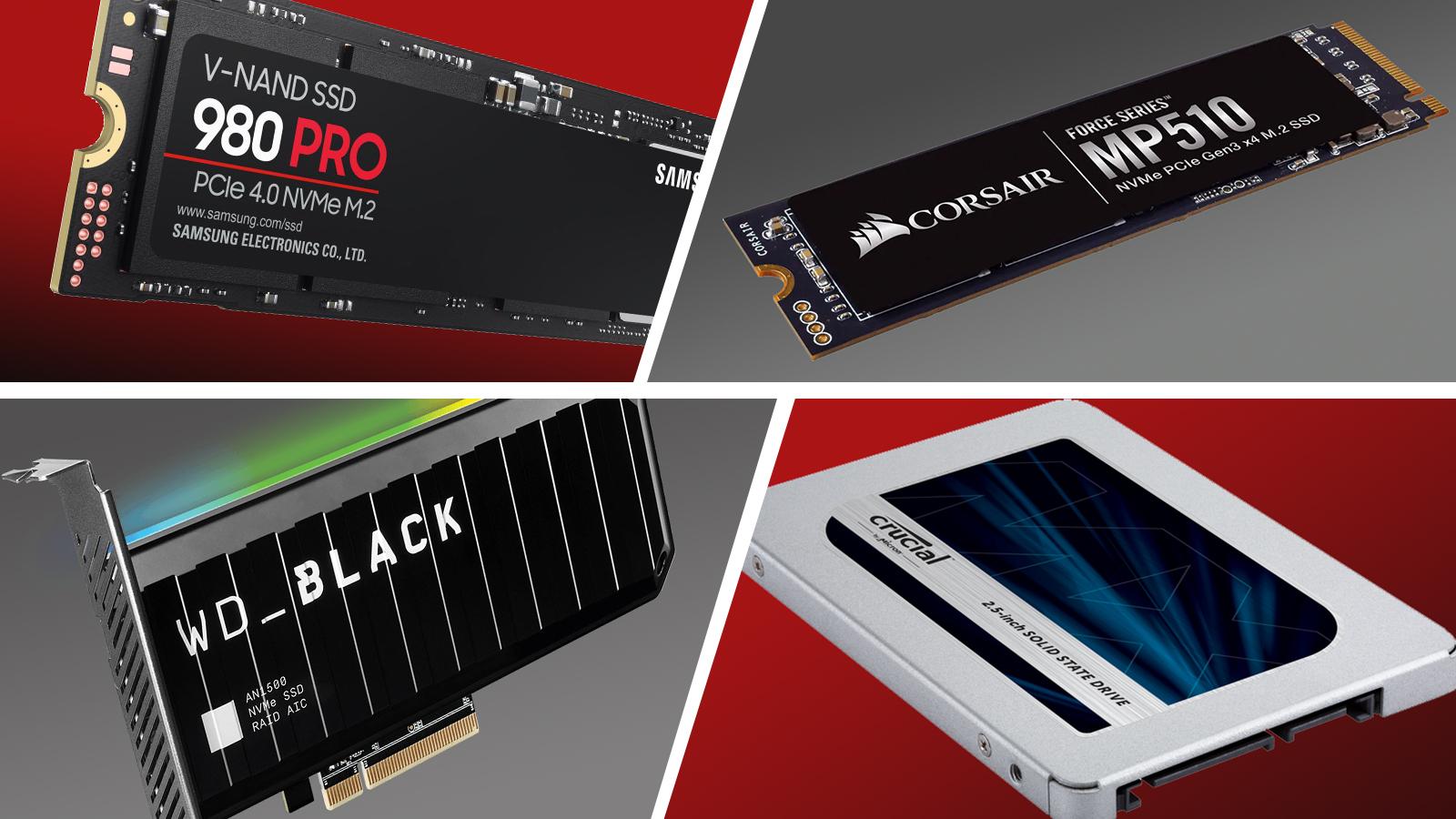
The format of an SSD determines its physical dimensions and compatibility with your system. The two most common consumer formats are:
- 2.5-inch SSDs – These resemble laptop hard drives and usually connect via SATA. They are easy to install and widely supported but generally slower compared to NVMe-based drives.
- M.2 SSDs – A slim stick-shaped format that fits directly into the motherboard. They can support both SATA and NVMe protocols. M.2 SSDs come in multiple sizes, such as 2280 (22mm wide, 80mm long), 2260, 2242, and even compact 2230 models used in handheld devices like the Steam Deck.
Most desktop PCs and laptops use the 2280 M.2 format, but it is essential to check your motherboard or laptop’s documentation to ensure compatibility before buying.
Interface: SATA vs. PCIe NVMe
The interface defines how the SSD communicates with the rest of your system. The two dominant standards are:
- SATA – A legacy interface with maximum speeds of about 600 MB/s. While slower, SATA SSDs are affordable, widely available, and still excellent upgrades over mechanical hard drives. Perfect for casual users or secondary drives.
- PCIe NVMe – The modern interface, capable of speeds up to 16,400 MB/s in theory. NVMe SSDs dramatically outperform SATA models and are best for high-performance tasks. However, they cost more and require a motherboard with NVMe support.
Compatibility is key: plugging an NVMe drive into an M.2 slot that only supports SATA will not work. Always confirm what protocols your motherboard supports before making a purchase.
Memory Type: How Data Is Stored
Inside every SSD are memory chips that store data in cells. The number of bits per cell determines both performance and reliability:
- MLC (Multi-Level Cell) – Stores two bits per cell. Known for reliability and endurance, though becoming rare as manufacturers shift to cheaper alternatives.
- TLC (Triple-Level Cell) – Stores three bits per cell. Offers a balance of price, performance, and capacity, making it the most common type in mainstream and even premium drives.
- QLC (Quad-Level Cell) – Stores four bits per cell. This lowers cost per GB but sacrifices speed and endurance. Best suited for budget-conscious buyers or drives used for light workloads.
Each memory type has trade-offs, but for most users, TLC SSDs strike the right balance.
Resource: Drive Endurance
An SSD’s resource, often listed as TBW (Terabytes Written), measures how much data can be written to the drive over its lifetime. Larger drives naturally have higher TBW ratings. While casual users rarely hit these limits, professionals working with massive datasets should pay attention to endurance ratings. Higher TBW means better durability, making it a safe investment for intensive workloads.
Final Thoughts
When buying an SSD, it’s tempting to focus solely on capacity or price, but ignoring other characteristics can lead to mismatches and wasted money. Storage capacity should match your usage, speed must align with your workload, and compatibility with your system’s interface and format is essential. Meanwhile, memory type and endurance help determine long-term reliability. By considering all six factors – capacity, speed, format, interface, memory type, and resource – you can choose an SSD that balances performance, reliability, and budget, ensuring your system runs at its best.
2 comments
I still use a SATA SSD and honestly it’s fine for office work
lol my 256gb drive filled up in a week with just 3 games 😅