Android 16 QPR2 Gives the Pixel Launcher Search Bar a Fresh New Look
Google is quietly preparing another visual refresh for Pixel owners, and this time it is focused on one of the most familiar parts of the interface: the Pixel Launcher search bar. With the Android 16 QPR2 update, the company is experimenting with brighter Dynamic Color accents, clearer iconography, and a more prominent shortcut to its AI powered search. The changes are not a dramatic redesign of Android, but they do show how carefully Google keeps iterating on small details that you stare at dozens of times every single day.
These tweaks are currently being tested in the Android 16 QPR2 Beta, which is available to Pixel users who have opted in to Google’s beta program. If you are not part of that group, you will see the revamped search bar once the stable Quarterly Platform Release lands on eligible Pixel phones, likely within the next month. QPR updates are the vehicle Google uses to ship feature drops, visual tuning, and bug fixes in between full Android version jumps, and this particular release puts the spotlight on the search experience inside the launcher.
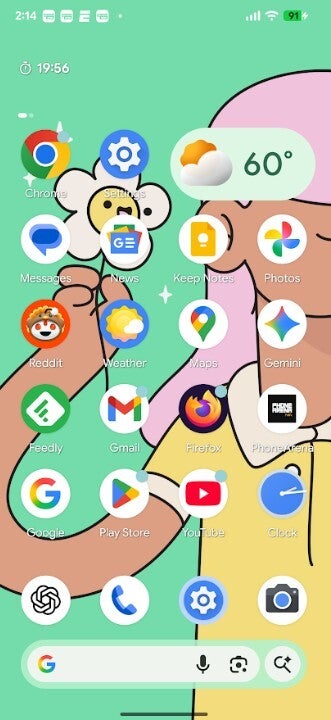
On a Pixel phone, the search bar appears as a pill shaped strip that you can swipe up into view from the bottom of the home screen. In Android 16 QPR2, this pill embraces the Dynamic Color system even more boldly. Android extracts dominant colors from your wallpaper and uses them across the interface, and now the search pill gains a vibrant backdrop that wraps around its perimeter. In the light theme, that color is intense and saturated, outlining a white inner area that keeps text and icons crisp and easy to read, while the outer glow ties the bar visually to the rest of your wallpaper based theme.
Look closely and you will notice that the search bar is visually divided into containers. The main, wider container is the familiar area that holds the Google logo on the left side, the microphone icon roughly three quarters along the bar, and the Google Lens icon anchored to the far right. Text appears beside the logo, inviting you to search the web, apps, contacts, and more. Because the center of the pill remains a clean white, those icons pop sharply against the background, making their functions obvious even at a glance.
Sitting beside this main pill is a smaller, circular element that resembles a magnifying glass with a little sparkle icon next to it. This is the shortcut to Google’s AI mode, which routes your query through the company’s more conversational, Gemini based search experience. Tap this and you are dropped straight into an AI focused interface where you can ask broader questions, request summaries, or get multi step answers instead of traditional blue link results. By separating AI mode into its own compact button, Google gives power users a fast lane to its newest search tools without forcing everyone else into a radically different workflow.
In dark theme, the new design takes on a different personality. The Dynamic Color accent around the border of the pill is still drawn from your wallpaper, but it appears deeper and less neon than it does in light mode, preventing the bar from becoming a distracting strip of light on an otherwise dim background. Even so, it is noticeably brighter and more defined than in the current Android 16 QPR1 stable release, so the search component is easier to spot when you glance at the screen in a dark room. The white inner text field shifts to a dark tone that preserves contrast while avoiding the blinding effect of a pure white block on an OLED display.
The visual refresh does not stop at the bottom of the interface. Inside the app grid, where you see the full list of installed applications, there is a second search bar at the top. This bar behaves a bit differently: it does not use distinct containers and instead shows a simple text field with the prompt telling you that you can search the web and more. In Android 16 QPR2, Google has subtly enlarged the microphone, AI mode, and Lens icons in this upper bar. The layout is still minimal, but the larger icons are easier to tap and easier to recognize, especially for users with larger screens or those who rely on one handed use.
None of these visual adjustments qualify as a headline grabbing feature on their own, but taken together they reveal how Google is scrutinizing every pixel of the Pixel Launcher. Small boosts in contrast, a richer use of color, and clearer affordances for AI mode all add up to an experience that feels more polished. When you talk about user interface design, the improvements that you notice only after a day or two of use are often the ones that matter the most, because they reduce friction without demanding that you relearn anything.
If you are the sort of person who likes to live on the cutting edge, you can try these changes today by joining the Android 16 QPR2 Beta program. Before you do anything else, it is essential to back up your phone. Beta software, even relatively mature QPR builds, can still contain bugs, unexpected battery drain, or compatibility issues with banking apps, games, or work tools. QPR betas tend to be more stable than early developer previews, but they are not guaranteed to behave perfectly on every device.
Once you have backed up your data and you understand the risks, joining the beta is straightforward. Open a browser on your phone or computer and head to the Android beta website at google.com/android/beta. After signing in with the Google account that you use on your Pixel, look for the section labelled to view your eligible devices. You will see an image of your Pixel phone, and underneath it there will be an option associated with the QPR2 beta track. Select the option to opt in to the QPR2 Beta program, confirm your choice, and then wait a short while for the system to register your enrollment.
When enrollment completes, your Pixel will offer the beta build as a normal over the air software update. On the phone, go to Settings, then open the System section, and find the Software updates or System update page. From there, check for updates and follow the on screen instructions to download and install Android 16 QPR2 Beta. As with any major update, it is wise to plug your phone into power and connect to a reliable Wi-Fi network, because the download can be several gigabytes and the installation process may take some time.
However, just because you can join the beta today does not automatically mean you should. The stable version of Android 16 QPR2 is expected to roll out to the public in the coming weeks. If all you want is a slightly brighter search bar and some refreshed icons, it may not be worth dealing with potential bugs just for an early peek. The smarter strategy for many people is to simply wait for the official release, which will arrive as a standard update without any extra steps, bringing the new Pixel Launcher design along with performance tweaks and security patches.
Another important detail to understand is how exiting the beta program works. If you stay enrolled until the stable Android 16 QPR2 build is released and installed on your device, you can then leave the beta without losing your data. In that scenario, Google treats the stable build as the same software line and lets you step off the testing track gracefully. If you opt out earlier, though, before the stable version has been delivered, your only way back to a non beta firmware is a factory reset that wipes your phone. That means every app, photo, and message disappears unless you restore from a backup, so deciding to join or leave the program should not be done on impulse.
In the end, the refreshed Pixel Launcher search bar in Android 16 QPR2 is a small but telling example of how modern mobile platforms keep evolving. Google is experimenting with how Dynamic Color frames core interface elements, how prominently AI features should appear, and how to balance brightness and readability in both light and dark themes. Whether you jump into the beta or choose to wait for the stable release, Pixel phones are about to gain a search experience that looks a bit more lively and feels a bit more intentional every time you swipe up to start typing.
1 comment
Google again: tiny visual tweak, 2GB update 😂 still, the AI button is lowkey useful tbh