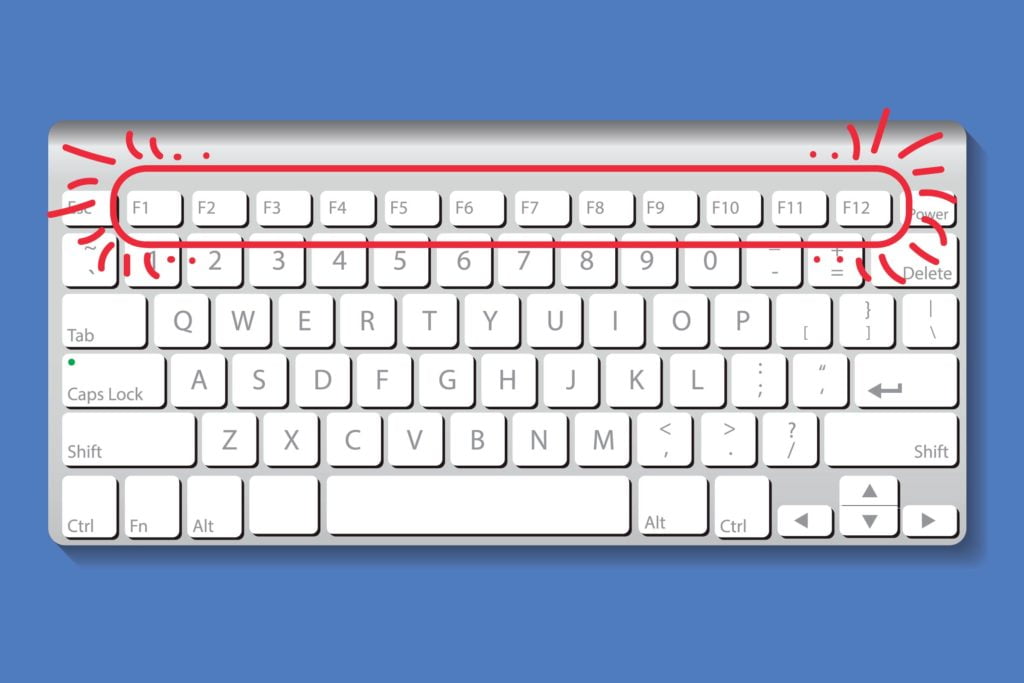
On every modern laptop keyboard you’ll find a row of keys labeled F1 through F12. These are called function keys, and while they may look simple, they can trigger a surprising variety of actions. In classic desktop computing, pressing F1 would bring up the help menu, F2 would rename files, F5 would refresh a browser page, and so on. But many laptop owners run into a common frustration: instead of performing these traditional actions, the keys adjust brightness, change the volume, toggle Wi-Fi, or even disable the touchpad. So why does this happen, and how can you restore the standard functionality?
The answer lies in how laptop manufacturers configure keyboards by default. Most modern machines ship with the function row set to multimedia mode. That means the F-keys prioritize shortcuts for screen brightness, sound control, or media playback, because these are considered more useful for everyday users. To access the original F1–F12 actions, you often need to press the Fn key – a small modifier key typically located in the bottom-left corner of the keyboard.
Using Fn to unlock classic functions
For many laptops, the easiest workaround is to hold down the Fn key while pressing an F-key. For example, pressing Fn + F5 refreshes your web page instead of lowering brightness. On MacBooks, the Fn key also switches the behavior: F5 might dim the keyboard backlight by default, but Fn + F5 refreshes the browser page.
Because laptop makers implement their own multimedia shortcuts, the icons on the keys themselves help clarify their function. You might see a speaker symbol, a sun for brightness, or a microphone toggle. Even between laptops from the same brand, the assigned functions can vary. For instance, a 2013 MacBook Air used F5 for keyboard backlight brightness, while newer 2022 MacBooks use the same key to mute the microphone.
Changing the default F-key behavior in Windows
If you frequently rely on the standard functions instead of multimedia, you can permanently change the default mode. Here are several methods available for Windows laptops:
- Fn + F-lock: Some keyboards include a special lock key (sometimes combined with Esc). It might be labeled FnLock, FnLk, or simply show a padlock icon. Pressing Fn + Esc toggles between multimedia and classic function mode.
- Special brand features: On HUAWEI laptops, pressing Fn once toggles modes, and a small indicator light shows the current state.
- BIOS/UEFI settings: For a permanent change, reboot your laptop and enter BIOS or UEFI (commonly by pressing Del or F2 during startup). Once inside, navigate to menus like Advanced, Main, or System Configuration. Look for an option such as Action Keys Mode, HotKey Mode, or Function Key Behavior. Switch the setting to Enabled (meaning F1–F12 act as traditional function keys), then save and reboot with F10. After this, you’ll only need Fn if you want the multimedia shortcuts.
Adjusting F-keys on macOS
Apple makes customization straightforward. Go to System Preferences → Keyboard → Shortcuts → Function Keys. Check the box for “Use F1, F2, and other function keys as standard function keys.” Once enabled, your MacBook will prioritize traditional functions. To adjust brightness or volume, you’ll then hold the Fn key instead.
Quick summary
If your laptop’s F1–F12 keys don’t seem to work the way you expect, the issue is almost certainly that the keyboard defaults to multimedia mode. The simplest fix is pressing the desired key while holding Fn. For a more permanent solution, change the setting in BIOS/UEFI on Windows or in System Preferences on macOS. Once configured, you can refresh pages with F5, rename files with F2, or use other classic shortcuts without needing to constantly hold down Fn.
In short: the F-keys haven’t disappeared – they’re just hiding behind multimedia functions. With the right settings, you can decide whether you want them to behave like tools for productivity or shortcuts for everyday media control.