How to Enter BIOS and UEFI on a Laptop: A Complete Guide
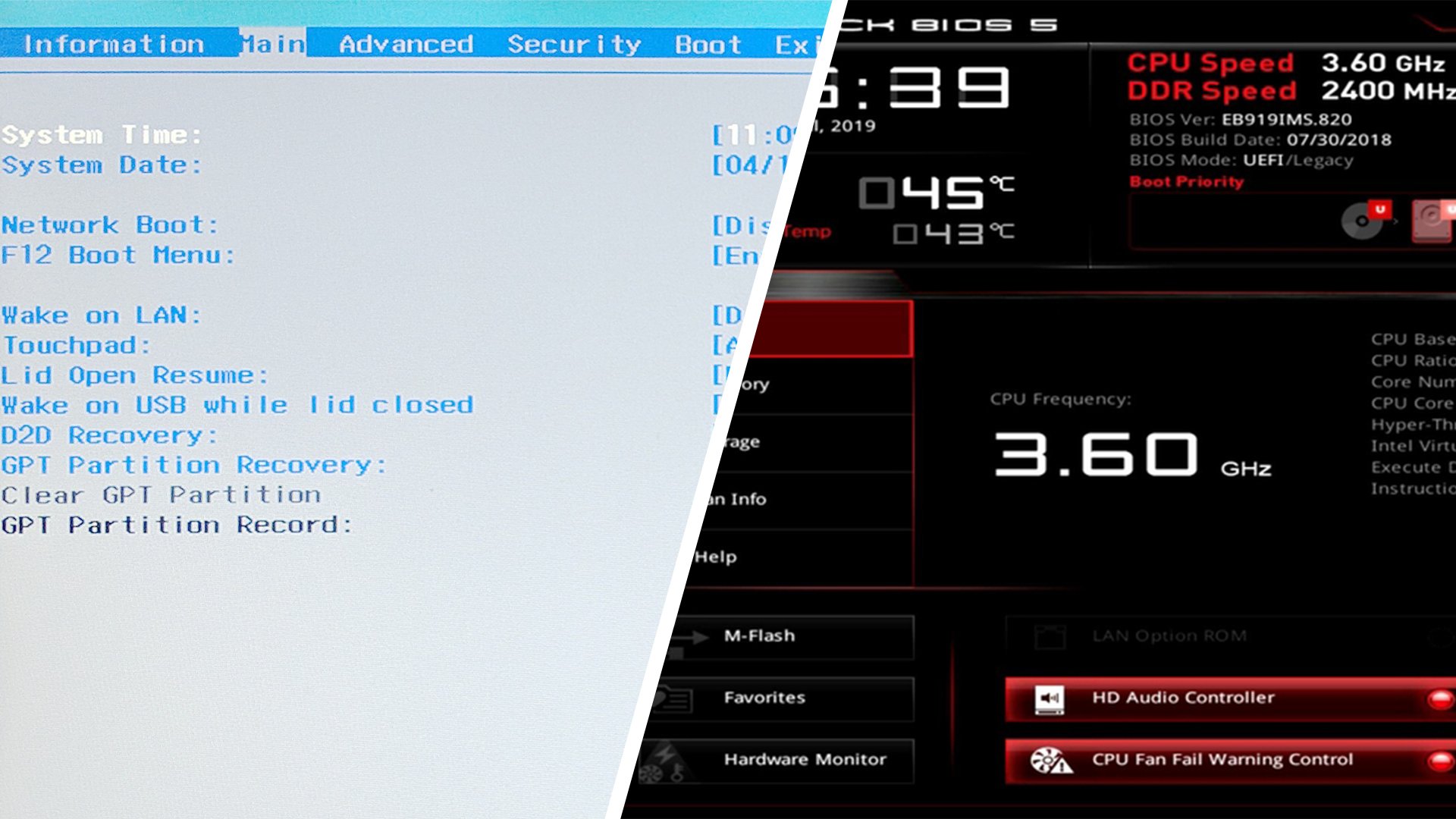
Every modern computer begins its work long before Windows, Linux, or macOS appears on the screen. The very first program that comes to life after you press the power button is the BIOS (Basic Input/Output System) or its more advanced successor, UEFI (Unified Extensible Firmware Interface). These systems are responsible for the initial hardware check, configuration of connected devices, and the handover of control to the operating system. Understanding how to access them is crucial, whether you want to reinstall your OS, troubleshoot hardware issues, or adjust system-level settings such as fan speeds, boot priorities, or function keys.
While the term BIOS is still widely used, most laptops produced in the past decade come equipped with UEFI, which provides a modern interface, often localized in different languages, and support for mouse navigation. Despite this, the word BIOS has stuck in everyday speech, and people continue to use it interchangeably with UEFI.
Why You Might Need BIOS/UEFI
There are many scenarios where entering BIOS or UEFI becomes necessary. Gamers may tweak performance settings, IT administrators might adjust virtualization features, and ordinary users often need it when reinstalling Windows or changing the boot order to run from a USB drive. Additionally, those who want better thermal management can change how fast the cooling system ramps up under load, and advanced users can enable or disable integrated devices directly from the firmware menu.
Entering BIOS/UEFI During Startup
The most common way to access BIOS or UEFI is at startup. Right after pressing the power button, before Windows begins to load, a small time window of just two or three seconds opens. During this short period, pressing the correct key combination interrupts the boot process and brings up the firmware interface. Miss it, and the operating system launches, requiring you to restart and try again.
The key combination depends on the laptop manufacturer, model series, and sometimes even the year of release. Here are the most common and brand-specific shortcuts:
- General laptops: Del, F2, or Fn + F2 are the standard go-to keys.
- Dell: F1, F10, Insert, or Esc.
- Sony: For Vaio models, press the Assist button, then choose Start BIOS Setup. Other Sony laptops often use F1 or F3.
- Samsung: Try F8, F12, or Fn + F8/F12 combinations.
- HP: Typically F10 or Esc; older models sometimes use F1, F8, or F11.
- Asus: Hold F2 before powering on, then press the power button while still holding F2 until BIOS appears.
- Acer: Options vary: F1, Ctrl + Alt + Esc, or Ctrl + F2 for Aspire series. TravelMate and Extensa series often respond to F2 or Del. Older devices may need Ctrl + Alt + Del or Ctrl + Alt + Esc.
- Lenovo: F2, Fn + F2, sometimes F8 or Del.
- Chuwi: Esc.
- Digma: Del, F2, F9, or F12.
If your laptop boots too quickly, you may need to try multiple times, as modern systems often skip the old startup prompts in favor of faster boot processes.
Accessing BIOS/UEFI from Windows
On many laptops, especially those with fast startup enabled, entering BIOS by pressing a key can be frustratingly difficult. Luckily, Windows 10 and Windows 11 include a built-in way to reboot directly into UEFI firmware settings, making the process easier.
Windows 10
1. Open the Start menu and go to Settings.
2. Navigate to Update & Security → Recovery.
3. Under Advanced Startup, click Restart Now.
4. From the recovery screen, select Troubleshoot → Advanced Options → UEFI Firmware Settings.
5. Confirm and reboot – the laptop will load straight into UEFI.
Windows 11
1. Go to Settings → System → Recovery.
2. Under Advanced Startup Options, click Restart Now.
3. After reboot, choose Troubleshoot → Advanced options → UEFI Firmware Settings.
4. Restart to open the firmware menu.
Another shortcut works in both Windows 10 and 11: open the Start menu, click the power icon, hold down Shift, and then select Restart. The system will boot into recovery mode, from which you can navigate to the UEFI Firmware Settings.
Entering BIOS/UEFI on Linux
Linux users, particularly those on Ubuntu, can also enter BIOS/UEFI either at startup with a key press or through the terminal. The latter method is convenient when you’re already logged in. For example, on Ubuntu 20.04, you can press Ctrl + Alt + F1 to open a console, then type:
sudo systemctl reboot --firmware-setupAfter executing this, the system will reboot directly into the firmware interface. However, some users have reported that this approach resets settings to factory defaults. While not harmful, it means any previous adjustments must be reapplied.
What About macOS?
MacBooks and other Apple laptops are different. Starting with Intel-based models, Apple no longer provides access to BIOS or UEFI for users. Instead, Apple offers its own system management tools, such as Recovery Mode and Startup Manager, which handle most tasks typically managed through BIOS. For Apple hardware, there is simply no user-accessible firmware menu.
Final Thoughts
Whether you’re troubleshooting a problem, installing a new OS, or fine-tuning performance, knowing how to enter BIOS or UEFI is an essential computer skill. Windows makes the process more convenient with built-in recovery options, Linux provides terminal commands, and each manufacturer offers its own shortcut keys during startup. The only major exception is Apple laptops, where BIOS access isn’t available at all. By keeping these instructions in mind, you’ll always be able to reach the firmware environment whenever you need to.