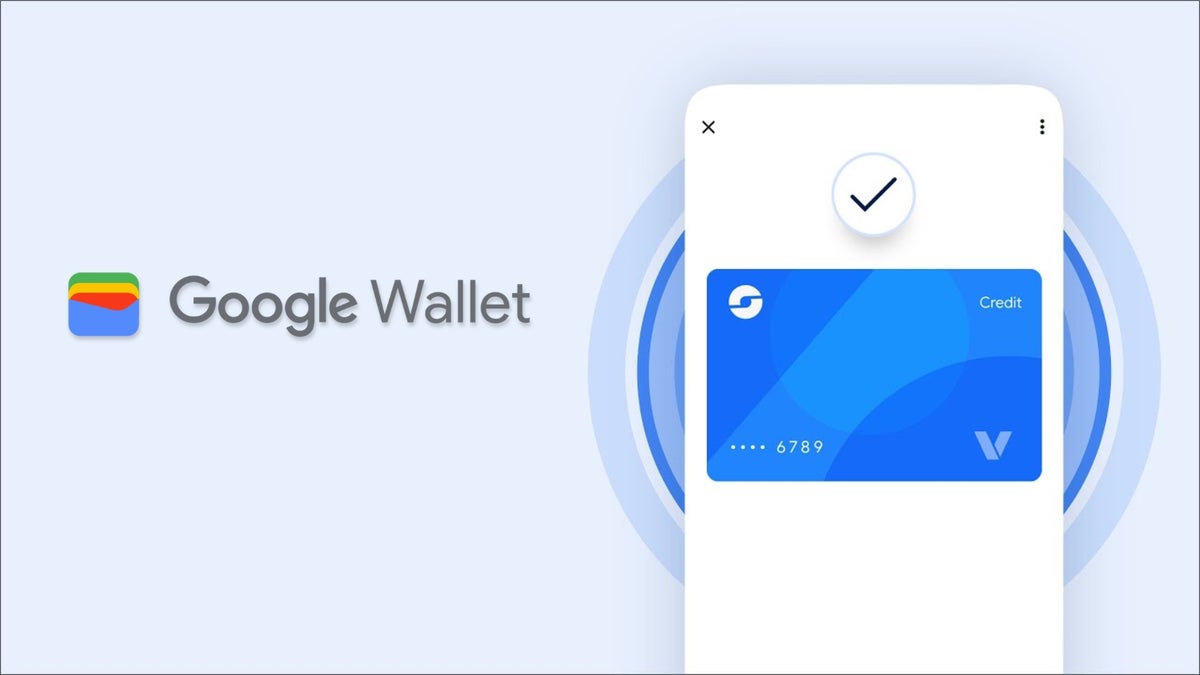
Google Wallet Personalization: What It Does, How to Enable It, and How to Switch It Off
Google Wallet has quietly become the central vault for your everyday digital essentials on Android – credit and debit cards, store loyalty cards, airline boarding passes, event tickets, transit passes, and even IDs in some regions. Yet it often lives in the background compared with attention-grabbing apps like YouTube, Gmail, or Drive. That may change as Google rolls out new controls that let Wallet data shape what you see across other Google services – but only if you want it to.
What’s New: A Smarter Wallet – and a Faster Commute
Two notable upgrades are coming into focus. First, a Transit Card feature is being prepared that lets you tap to pay for public transport with a specific card without unlocking your phone. For commuters, removing that extra step could shave seconds off every trip and reduce turnstile friction – especially when you’re carrying bags or chasing a transfer.
Second, Google is surfacing data and privacy settings inside Wallet that allow your Wallet activity – like the passes and loyalty cards you store – to inform recommendations, promotions, and ads you see elsewhere on Google. Think tailored grocery deals pulled from your supermarket loyalty card, or flight suggestions that align with the airline passes you already keep in Wallet. Crucially, these controls are optional and can be turned off at any time.
Two Switches That Matter
Inside Wallet you’ll see two related, but distinct, options:
- Use Wallet to personalize experiences across Google – When enabled, passes and purchase activity from Wallet can help personalize the content you see in first-party Google experiences. Examples include surfacing promotion tiles in Search tied to your loyalty programs or suggesting the airline you tend to fly when you start planning a trip.
- Use Wallet to personalize Google Ads (Wallet History) – When turned on, Wallet and payments information can be used to make ads more relevant. You manage this through My Ad Center. If you’d rather your Wallet data not be used for ads, you can leave this off or switch it off later.
Whether you enable one, both, or neither is up to you. The point is control: you decide how much your Wallet contents influence what Google shows you.
How to Enable or Disable on Android
- Open the Google Wallet app on your phone.
- Tap your profile icon in the top-right corner.
- Choose Your data in Wallet > Manage data from Wallet and payments services.
- Toggle Use Wallet to personalize experiences across Google on or off.
- For ads personalization, tap Use Wallet to personalize Google Ads. You’ll be redirected to My Ad Center to turn this setting on or off.
How to Enable or Disable on Desktop
- Go to wallet.google.com in your browser.
- In the left sidebar, select Settings.
- Under Data & Privacy, toggle Use Wallet to personalize experiences across Google on or off.
- Under the same section, select Use Wallet to personalize Google Ads to jump to My Ad Center and adjust ads personalization there.
What Data Is Used – and What You’ll Notice
With both switches enabled, Google may use Wallet items such as purchases, loyalty cards, event tickets, and boarding passes to make Google services feel more tailored. That can show up as:
- Promotions and recommendations in Google apps that match stores where you already earn points.
- Personalized ads that reflect categories you actually buy from – tunable at any moment in My Ad Center.
- Travel conveniences, like recognizing the airline you prefer based on the passes you keep, reducing search friction when planning.
Don’t want that? Keep one or both toggles off. If you change your mind later, you can return to the same menus and re-enable them. The settings are designed to be reversible and granular.
Rollout Notes: Don’t See It Yet?
Google says these Wallet controls are rolling out gradually in the U.S.. If the options aren’t visible yet on your device – even if you’re running a current Android build – there’s nothing wrong with your setup. You should receive a notification inside Wallet when the new settings land on your account. Until then, your existing Wallet features continue to work as usual.
Practical Tips to Get the Most from Wallet
- Audit your passes: Add or remove loyalty cards so recommendations map to places you actually shop.
- Check My Ad Center: Fine-tune categories, mute advertisers you don’t care about, or turn off personalization entirely.
- Try transit with tap-to-pay: When the Transit Card support arrives in your city, set a default transit card so you can breeze through gates without unlocking your phone.
- Keep backups handy: For travel, store boarding passes and event tickets in Wallet and keep emails or PDFs as a fallback.
Privacy, Transparency, and Choice
The most important part of this update is not a shiny feature – it’s the clear consent and control over how Wallet contributes to your broader Google experience. The toggles are prominent, the use cases are specific, and the path to switch them off is straightforward. If personalized deals and smoother trip planning sound helpful, opt in. If you prefer a strictly neutral experience, keep the gates closed. Either way, Wallet remains a secure, convenient hub for payments and passes on Android.
Bottom Line
Google Wallet is evolving from a place you stash cards into a smart companion that can make Google’s ecosystem feel more relevant – and commuting more effortless when the Transit Card capability is available. Spend a minute in Your data in Wallet to choose how much (or how little) Wallet informs the rest of your Google life. The settings are simple, the benefits are tangible, and the controls are in your hands.
3 comments
All fine, but make it optional forever. Don’t move the switch later 😑
Tried to find the toggle on my Pixel 6 Pro – still not there. Guess rollout is slow
If it helps me catch cheaper flights from my usual airline, I’m in