Safari on iOS 26 is a mess – but you can fix a lot of it
iOS 26 arrived with the kind of glossy ambition Apple loves to show on keynote stages: a fresh coat of Liquid Glass, softer translucency, and a minimal, modern veneer that makes even the clock feel new. On paper, Safari benefited from this overhaul. In practice, the default experience feels like a regression for people who actually browse the web all day. The good news is that with a handful of settings tweaks and a few new habits, you can recover much of what made Safari fast and predictable on the iPhone – and avoid the most irritating parts of its redesign.
Minimalism turned inconvenient: what changed in Safari
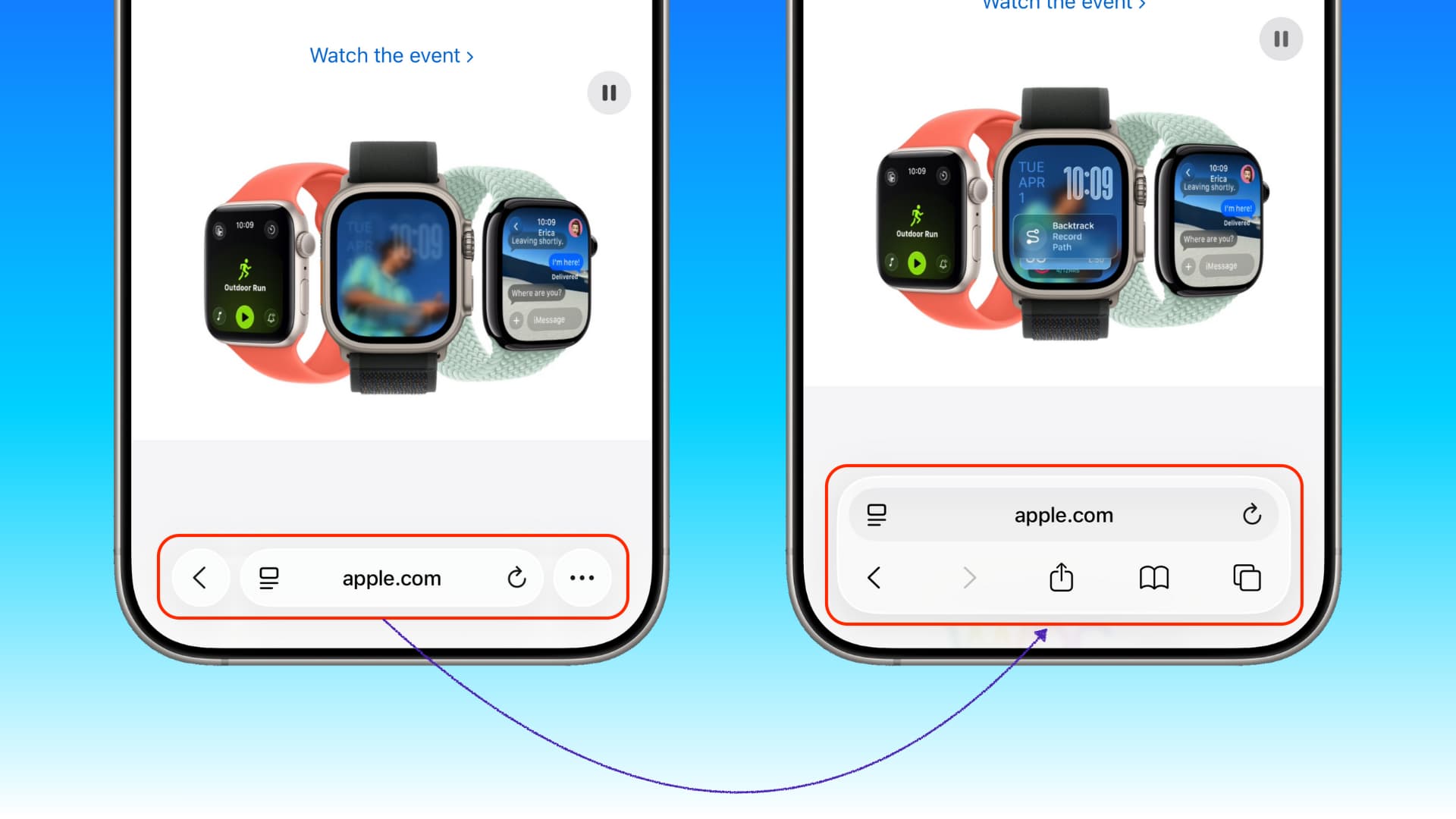
Open Safari on iOS 26 and you’re greeted by a simplified, droplet-like control cluster parked at the very bottom of the display. It looks fresh. It also hides essential controls. Most notably, the universal All Tabs view – the place where power users live – is now tucked behind the three-dot menu. That single change adds an extra tap every time you want to manage your tab switcher. It’s the first time on iPhone that access to all your tabs has been demoted behind a menu, and it’s a jarring break with years of muscle memory.
Compounding the friction, the default behavior for long-pressing a link and choosing Open in New Tab is to immediately yank you away from your current page. If you opened that link because you planned to read it later, you have to backtrack. Do that a dozen times while researching and you’ll feel the drag.
Gestures are clever – until they collide with iOS
Apple clearly expects gestures to carry the UI. Swipe horizontally across the bottom address bar to move between tabs. Pull up from that bar to drop into the tab overview. When it works, it’s fast and delightful. But the address bar sits right above the iOS system navigation area. Miss by a few pixels and your “tab switch” becomes an app switch or a minimized Safari. If you’re right-handed and using a larger iPhone, you’ll hit these misfires more than you think, especially on the move.
Bottom line: gestures are great accelerators, not great replacements for persistent, obvious controls. Power users need both; iOS 26 ships with only one of those emphasized.
UI feedback that feels weightless
The new Liquid Glass elements look premium but communicate poorly. The back button appears as a single left arrow until you tap it – then it expands into a two-part back/forward cluster. That context switch may sound minor, yet it breaks visual consistency and makes the controls feel unstable. Tap feedback isn’t crisp either. Press forward, and the entire droplet lifts without a clear left/right emphasis, so you often wonder: did I hit the correct side?
Menus share the same floaty ambiguity. Multi-option panels arrive as one glossy slab with thin or no separators. Tap accuracy matters more than it should because your finger rarely gets a distinct “you hit this one” confirmation. Pretty, yes; self-explanatory, not quite.
The quick fixes: reclaim sanity in Settings
Thankfully, much of the pain is optional. Head to Settings → Safari and make these changes immediately:
- Tabs layout: Top or Bottom. If you came from the iOS 18 era of bottom controls, choose Bottom to get a bigger control area near your thumb. If you prefer balance with a classic feel, pick Top so the address bar returns north and the nav cluster lives at the bottom. Neither is perfect, but both are better than the cramped default droplets.
- Open Links → In Background. This setting prevents Safari from hijacking your current page when you open a link in a new tab. It restores the expected research flow: finish what you’re reading, then visit the queued tabs.
- iOS 26.1 Liquid Glass tint. After updating to iOS 26.1, enable the more opaque tint for Liquid Glass elements. It slightly dulls the shine, but dramatically improves legibility on busy backgrounds.
Make these three changes and Safari immediately becomes calmer, clearer, and less jumpy – especially on content-heavy sites with dynamic backgrounds.
Ergonomics and the missing “New Tab” button
It’s 2025 and there is still no obvious + for a new tab in Safari’s primary view. Every other platform has taught users that a new tab is one tap away, yet iOS 26 leans into a “swipe to create” philosophy: swipe across the tab strip to the far right, and Safari spawns a fresh tab. It works, but it’s invisible and inconsistent with the rest of the ecosystem. Worse, the All Tabs button sits at the bottom-right by default, but once you enter the tab overview, the New Tab control appears on the opposite side. Tap-to-create becomes a two- or three-step process involving both corners of the display. That’s not thoughtful minimalism; that’s needless cardio for your thumb.
If you insist on tapping and not swiping, your routine becomes: menu → All Tabs → New Tab. That’s two to three taps where there used to be one, and precisely the kind of chore that turns quick web checks into small frustrations.
Make gestures safer and more predictable
If you like the idea of a gesture-first browser but hate the accidents, you can retrain how you swipe:
- Use the address bar as your anchor. Start swipes from the center of the bar rather than the edge nearest the system nav area. The few extra millimeters reduce misfires.
- Adopt a “short pull” to open Tabs. A light upward tug on the address bar is less likely to trigger the system home gesture than a full, quick flick from the very bottom.
- Reserve horizontal swipes for reading mode. Standing still? Swipe. Walking or on a bus? Use explicit taps via the tab overview to avoid accidental app switching.
None of this excuses the default ergonomics, but it does make day-to-day browsing calmer while Apple iterates.
Clarity over gloss: sharpening the interface feedback
Even if you love the Liquid Glass look, you probably want more tactile feedback. The 26.1 tint option is the first meaningful step. You can go further with a few habits:
- Prefer list-style menus when available. When a site offers both a custom panel and a system sheet (share menus, for example), favor the system sheet – it has stronger separators and clearer hit targets.
- Long-press links for context you can trust. The link preview card remains one of Safari’s most legible UI elements; it shows the destination and keeps you oriented without committing to a full load.
- Zoom with intent. If a site’s header or nav overlaps Safari’s elements, pinch to zoom slightly before tapping controls. It’s a hack, but it prevents “did I hit it?” moments on fussy layouts.
When Chrome and others look tempting
It’s fair to ask whether you should abandon Safari altogether. Third-party browsers on iOS must still use Apple’s engine under the hood, but they can design cleaner chrome (no pun intended) for everyday flows. Many put a big, friendly + within thumb reach. Tab grids tend to be one tap away. If the new Safari slows you down and you don’t rely on iCloud Tabs, Reading List, or Keychain auto-fill, using an alternative may save you mental overhead.
That said, Safari remains the battery champ on iPhone and integrates deeply with Focus modes, Handoff, and privacy features many people value. With the right settings and a few muscle-memory adjustments, you can get most of the speed back without giving up those perks.
Power user setup: my recommended baseline
If you want a setup that feels like the old, productive Safari while respecting iOS 26’s design, start here:
- Layout: Tabs on Top (address bar at the top, nav buttons at bottom) for the best balance between reachability and visual stability.
- Open Links: In Background, always.
- Tab Switcher Access: Add the habit of a short upward pull from the address bar; avoid the three-dot menu whenever possible.
- New Tab: Swipe to the far right of the tab strip when you’re stationary; otherwise open via the tab overview to prevent misses.
- Visibility: Enable the more opaque Liquid Glass option in iOS 26.1 for consistent readability.
Why this feels un-Apple – and what would fix it
Apple’s best interfaces bake power into obvious controls. You don’t need a manual to discover them, but they’re there the moment ambition kicks in. iOS 26’s Safari hides power in gestures and buries the rest under a menu. The fix is not radical: surface an always-visible + for new tabs; keep All Tabs one tap away; stop flipping button states mid-session; and make touch feedback unambiguous. Those four changes would satisfy minimalists and power users equally – and they wouldn’t disturb the Liquid Glass aesthetic that makes the system feel new.
Micro-tweaks that pay off
Until Apple lands those improvements, small decisions help. Use Reader mode where available to reduce visual busyness and keep UI elements obvious against high-contrast text. Favor sites with clean typography and fewer sticky headers; they fight less with Safari’s translucency. And if you’re a one-handed scroller, consider bumping text size one notch; it increases tap targets across the board, including those inside sites that love microscopic nav links.
What about the back/forward buttons?
One of the most common complaints is that the back/forward pair consumes space without adding certainty. Gestures for back/forward are indeed faster – a quick edge swipe usually beats a tiny arrow, and on iOS 26 that’s doubly true given the shifting visuals. If you’re comfortable living in gestures, embrace them: treat the on-screen arrows as a backup rather than primary controls. Just be mindful of the system swipe zone and use the address bar as your origin point to reduce mistakes.
The practical checklist (do this now)
- Update to iOS 26.1 for the Liquid Glass tint option.
- Go to Settings → Safari → set Tabs: Top (or Bottom if you prefer reachability).
- Set Open Links: In Background.
- Practice a short pull on the address bar for All Tabs.
- Create tabs by swiping to the far right when stationary; otherwise use the tab overview’s New Tab.
- Lean on Reader mode and modest text-size increases for cleaner, more legible controls.
The verdict
Safari on iOS 26 isn’t broken, but the default design prioritizes showroom minimalism over day-to-day speed. With a few toggles and tweaks, you can reclaim the rhythm of fast, multi-tab browsing – and sidestep the floaty, ambiguous feedback that makes the new chrome feel slippery. Apple’s philosophy here is clear: swipe first, tap second. For many of us, the right answer is both. Until that balance returns by default, these fixes keep Safari powerful without forcing you into a different browser – or into constant second-guessing of where your thumb just landed.
1 comment
Pro tip: Open Links → In Background is the real fix. Researching doesn’t derail my current page anymore