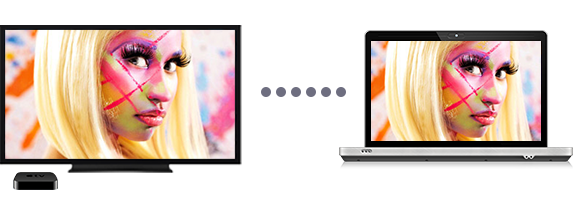
How to Stream Video from Computer to TV Wirelessly: Complete Guide for Windows and Mac Users
In today’s connected world, few things are as convenient as watching your computer content directly on a big TV screen without messy cables or clunky flash drives. Whether you want to share vacation videos with friends, deliver a business presentation, or enjoy a gaming session on a large display, wireless streaming has made it simpler than ever. But because different operating systems and TVs use different technologies, the process is not always obvious. Below, we’ll take a deep dive into the most reliable methods to connect your computer to a TV wirelessly, covering both Windows and macOS solutions.
Why Go Wireless?
Traditionally, connecting a computer to a television required an HDMI cable, VGA connection, or even transferring files onto a USB drive to plug into the TV. While those methods still work, they come with limitations. HDMI cables restrict your mobility, USB transfers are time-consuming, and not every format plays nicely with every TV. Wireless connections, on the other hand, allow you to use your TV as an additional monitor, mirror your screen, or stream only specific videos and photos – all without ever leaving your couch. Plus, with most modern TVs featuring built-in Wi-Fi and streaming protocols, the setup is often easier than you think.
Windows: Using Your TV as a Wireless Monitor
If you’re on Windows 8.1, 10, or 11, you already have powerful built-in tools to connect your computer wirelessly. Microsoft integrated Miracast and related protocols into these systems, making it possible to use your Smart TV as though it were just another monitor. This setup lets you duplicate your screen or extend your desktop for multitasking. Imagine playing a PC game on your large TV while simultaneously keeping your emails or chat windows open on your laptop screen – it’s both practical and entertaining.
How to Check TV Compatibility
Not every television supports wireless display connections. Generally, if your Smart TV was manufactured after 2015, it likely supports one of the necessary technologies: Miracast, Intel WiDi, Screen Share, or Screen Mirroring. You can confirm by checking your TV’s specifications on the manufacturer’s website. For example, LG’s B1 series explicitly lists support for Screen Share, which makes it ideal for this purpose.
Steps to Connect a Windows PC to a Wireless Display
- Ensure both the PC and TV are turned on and connected to the same Wi-Fi network.
- On Windows, press Win + K or open the Settings menu and select Connect to a wireless display.
- Choose your TV from the list of available displays.
Once connected, Windows defaults to Extend mode, treating the TV as an extra desktop. You can easily change modes by pressing Win + P, which brings up additional options:
- Duplicate: Mirrors your entire computer screen on the TV – perfect for photo slideshows or presentations.
- Second Screen Only: Turns off your computer display and shows everything on the TV, great for movie nights.
- Disconnect: Stops the connection entirely.
Note: While convenient, wireless connections do introduce some latency, especially for audio and video synchronization. For high-paced gaming – think first-person shooters – you may notice a lag. Casual viewing, productivity tasks, or slower-paced games, however, work perfectly well.
Windows: Broadcasting Specific Photos and Videos
Sometimes you don’t want your entire desktop on the TV; you may just want to show a video or slideshow. For this, Windows takes advantage of DLNA (Digital Living Network Alliance), a protocol supported by most Smart TVs from Samsung, Sony, LG, and other major brands. DLNA enables seamless media sharing between devices connected to the same Wi-Fi network.
How to Confirm DLNA Support
Look for “DLNA Certified” on your TV box, in the user manual, or on the manufacturer’s support page. If you see this, your TV is ready to receive media wirelessly.
Steps to Stream Media via DLNA
- Turn on both your computer and TV, ensuring they share the same Wi-Fi connection.
- Select the desired media file (photo, music, or video) on your PC, right-click, and choose Cast to Device or Transfer to Device.
- Select your TV from the available list.
If you select multiple photos, they will automatically display as a slideshow on the TV. The playback controls appear on your PC, but you can also navigate using your TV’s remote. Meanwhile, your PC remains fully usable – you could work on documents while your friends enjoy the slideshow on the big screen.
Mac: Using AirPlay for Wireless Streaming
Apple users have a different, but equally powerful, ecosystem for wireless streaming. Many LG, Samsung, and Sony Smart TVs manufactured after 2018 natively support AirPlay 2, Apple’s proprietary wireless streaming technology. If your TV is not on Apple’s compatibility list, an Apple TV set-top box is the simplest solution, acting as the wireless bridge between your Mac and the TV.
Steps to Mirror or Extend a Mac Screen
- Ensure your Mac and TV (or Apple TV) are on the same Wi-Fi network.
- On your Mac, click the Control Center in the top-right menu bar.
- Choose Screen Mirroring and select your TV.
- A four-digit code may appear on your TV; enter it on your Mac.
AirPlay offers two main modes:
- Video Mirroring: Duplicates the entire Mac display on the TV.
- Use as Separate Monitor: Extends your workspace, letting you dedicate your TV to specific apps like video players or presentations.
You can switch modes instantly through the Screen Mirroring icon in the menu bar.
Mac: Broadcasting Video to TV Without Mirroring
Sometimes, you may not want to mirror the entire Mac display but only stream video content. macOS offers seamless AirPlay integration in apps like Safari, QuickTime, and third-party players such as Infuse or browsers like Chrome. When watching a video, simply look for the AirPlay icon in the player controls and select your TV.
This approach streams the video in the background while keeping your Mac free for other tasks. For instance, you could stream a YouTube video to your TV while simultaneously preparing a work report on your Mac. Playback controls are available both on your computer and on the TV remote, though starting a new video typically requires initiating it from the Mac.
Quick Comparison: Windows vs. Mac Wireless Streaming
| Feature | Windows | Mac |
|---|---|---|
| Main Technology | Miracast, DLNA | AirPlay |
| Requirements | Smart TV with Miracast/DLNA support | Smart TV with AirPlay 2 or Apple TV box |
| Modes | Duplicate, Extend, Second Screen Only | Mirroring, Separate Monitor |
| Media Only Streaming | Yes, via DLNA | Yes, via AirPlay-enabled apps |
Conclusion
Streaming wirelessly from your computer to your TV is no longer a futuristic concept – it’s a standard feature built into most modern devices. For Windows users, Miracast makes your TV act like a second monitor, while DLNA enables background media streaming. For Mac owners, AirPlay offers a polished and seamless experience, whether you’re mirroring your entire screen or just sending a single video to the big screen. Regardless of which system you use, the convenience of wireless streaming means no more juggling HDMI cables or USB drives. Instead, you get instant big-screen entertainment or productivity right from the comfort of your couch.
3 comments
my samsung tv kept disconnecting, anyone else??
cant believe how easy it was, thx
used this for office presntation, life saver