Apple is preparing to roll out iOS 26, and excitement is high. This isn’t just a routine update with small bug fixes – it’s one of the biggest iOS upgrades in years, with a refreshed design and a wave of new features. But before you rush to tap that install button, there are some smart steps you should take to avoid headaches later, especially if you’re running an older iPhone. Think of it like prepping your car before a long trip: not strictly required, but very helpful.
Step 1: Make sure your iPhone is compatible
The first question is simple: can your device handle iOS 26? Apple is still supporting plenty of models, but there is a cut-off. 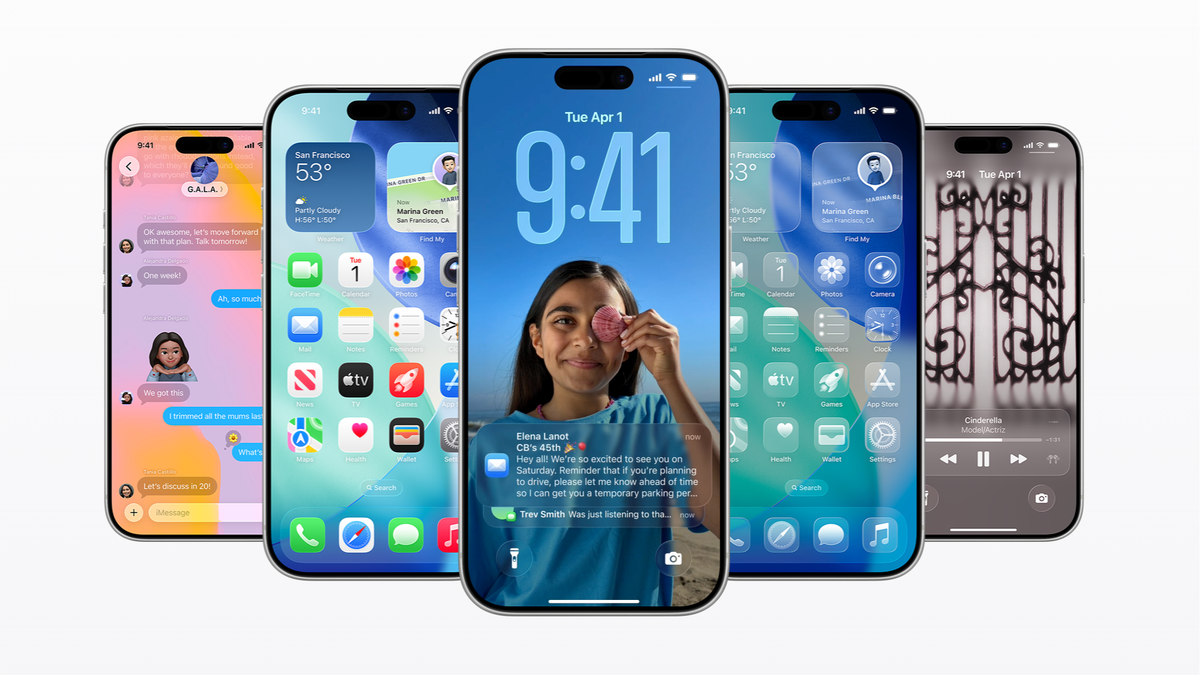
If you have an iPhone 11 or newer (A13 chip and above), you’re safe. That said, don’t expect every single feature. Apple’s flashy new Apple Intelligence features will only appear on the iPhone 15 Pro series, iPhone 16, and the just-announced iPhone 17 lineup. Everyone else will get the new OS, but not all of the bells and whistles.
Step 2: Back up your data
This is the step too many people skip – until something goes wrong. Updates rarely fail, but when they do, they can wipe your data. Setting up a backup only takes a few minutes. iCloud backup is the easiest route: go to Settings > [Your Name] > iCloud > iCloud Backup and tap Back Up Now. Just check you have enough storage first. If you prefer a physical copy, connect your iPhone to a Mac or PC. On newer Macs you’ll use Finder, on older macOS or Windows without Apple Devices app, you’ll open iTunes. Either way, you’ll get a full local backup that’s quick to restore if something breaks.
Step 3: Free up space
One of the easiest ways to run into trouble is not having enough free storage. iOS 26 needs a lot of breathing room, and Apple recommends at least 20 GB free for a clean install. If your phone is stuffed with apps you never use, endless screenshots, and gigabytes of cached data, now’s the time to purge. Head to Settings > General > iPhone Storage to see the worst offenders. You can delete what you don’t need or use the Offload Unused Apps option, which clears the app but saves your data. Media files are another big space hog – clear out old videos and duplicate photos. Don’t forget app caches, especially from services like Spotify or YouTube. Clearing mine freed up gigabytes.
Step 4: Update your apps
Your system apps update automatically with iOS, but third-party apps don’t. Outdated apps often cause crashes or weird bugs when a new system launches. Open the App Store, tap your profile picture, scroll down, and hit Update All. If you’ve been ignoring app updates for months, this step can save you a ton of trouble.
Step 5: Charge and connect to Wi-Fi
Installing a major OS update eats battery. Apple requires at least 50% charge, but ideally you should plug your phone in during the whole process. And don’t even think about downloading over cellular – the file is large, and you risk interruptions. A solid Wi-Fi connection will ensure the update goes smoothly.
Step 6: Learn what’s new
iOS 26 isn’t just under the hood. The most obvious change is the new Liquid Glass design, which gives the whole OS a sleeker, more fluid look. The Photos app has been reworked, Call Screening helps filter spam calls, and Live Translation lets you instantly translate conversations in real time. Reading up on the changes before installing helps you avoid confusion and lets you take full advantage right away.
Step 7: Consider waiting
If your iPhone is mission-critical – whether for work, school, or personal use – you might want to wait a few days. Apple has a track record of releasing a quick bug-fix patch (like iOS 26.0.1) shortly after launch. These smaller updates squash the inevitable early bugs and close security holes. Of course, don’t hold out too long, since staying on an outdated OS can leave you vulnerable.
Real-world user strategies
Plenty of experienced iPhone users have their own upgrade rituals. One common strategy is enabling auto-update for smaller patches, since iOS can temporarily offload apps to make space and then reinstall them with data intact. But photos and videos are a different story – iOS can’t magically restore those if it has to delete them. That’s why many users prefer to move their media to an external drive or cloud service before a big upgrade. Another tried-and-true method is doing a clean restore: wipe the phone, install the fresh OS, and then restore from backup. It takes more time, but some swear by the stability it brings.
In short, iOS 26 looks exciting, but spending a little time preparing makes all the difference. Whether it’s clearing space, backing up your life, or waiting a few days for stability, these steps ensure your shiny new OS doesn’t come with unwanted headaches.
3 comments
i had to delete 10gb of tiktoks just to fit the update 😭
my iphone 12 feels old now, no Apple Intelligence for me 😒
lol I never backup anything, just yolo update and pray 😂