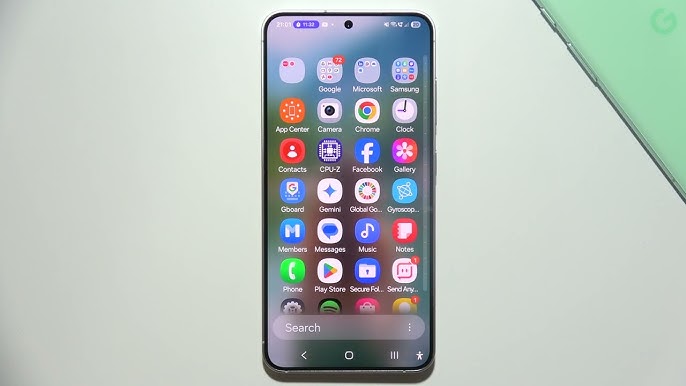
How to Hide Apps on Android: Complete Guide for Samsung, Xiaomi, Huawei, realme and More
In today’s world, smartphones are no longer just communication tools – they hold our most private conversations, personal photos, banking details, and even little secrets we might not want on display. Sometimes you may need to hide an app: maybe a messenger filled with sensitive correspondence, a dating app you don’t want your friends to notice, or simply a tool you prefer to keep tucked away. Whatever the reason, Android devices provide multiple ways to keep applications out of sight.
This article offers a detailed walkthrough on how to hide apps on Android across different brands like Samsung, Xiaomi, Huawei, Honor, and realme. We’ll also discuss third-party alternatives like App Hider for those seeking more flexibility. By the end, you’ll know not only the built-in tricks but also their limitations and when it might be smarter to rely on dedicated hiding apps.
Hiding Apps Through System Settings
Most Android devices include native options that let you hide apps directly from the interface. This is the simplest method and ideal if you’re only dealing with one or two apps. But simplicity comes with limitations: usually you cannot set individual passwords for hidden apps, and managing multiple apps at once becomes tedious because the process needs to be repeated each time. Furthermore, not every brand’s implementation offers advanced features like cloaking notifications or disguising apps under another name.
Samsung Devices
Samsung, being one of the biggest Android manufacturers, provides more than one way to conceal apps from prying eyes. These options cater to different levels of privacy needs.
1. Secure Knox Folder
Samsung’s Knox is essentially a digital vault designed with business-level security in mind, but it works perfectly for everyday privacy. It allows you to protect apps, photos, and files with a password or biometric lock.
To set it up, go to Settings → Security & Privacy → Knox Folder. If you don’t have a Samsung account, you’ll need to create one. Once signed in, assign a secure password, PIN, or fingerprint access. After activation, a new Knox shortcut appears on your home screen.
To add apps, open Knox, tap the plus icon, and choose the programs you want inside. Knox will create a secure copy of the application. To truly hide it, simply delete the app’s original version from your main screen. From then on, it will only be accessible through Knox, protected by your password.
2. Application Drawer Settings
If you don’t need the full vault functionality, Samsung also allows you to hide apps directly via the app drawer. Open the drawer, tap the three dots at the top right corner, and choose Settings → Hide apps on Home and Apps screens. Select the apps you want hidden. Their icons will vanish from both the home screen and the app drawer, effectively making them invisible.
To bring them back, repeat the process and deselect the hidden apps from the list. This method is quick, though not as secure as Knox since no password protection is applied.
Xiaomi, Redmi, and POCO
Devices from these brands all run MIUI, Xiaomi’s custom Android interface. Luckily, MIUI comes with built-in privacy features, including the ability to hide apps with gestures.
Open the pre-installed Security app, scroll to Hide apps, and toggle on whichever apps you want hidden. They will instantly disappear from your desktop and drawer.
To access them, use a special gesture: place two fingers on the home screen and spread them apart, just like zooming into a photo. A hidden apps folder appears, containing all the apps you’ve concealed. You can add or remove multiple apps at once, and even silence their notifications to avoid accidental exposure.
This method is convenient, intuitive, and does not require external downloads. It works across Xiaomi, Redmi, and POCO devices running modern MIUI versions.
Huawei and Honor
Huawei and Honor smartphones unfortunately offer fewer hiding options. On these devices, hiding apps usually means disabling them. While this works for pre-installed system apps like Gallery, Browser, or Camera, it’s less practical for third-party apps because disabling removes functionality entirely until re-enabled.
Here’s how: navigate to Settings → Apps → Apps. From the list, pick the program you want to hide, tap Disable, and confirm. The shortcut will disappear, but the app won’t be usable until reactivated.
To restore, revisit the same menu, choose All apps → Inactive, find the app, and tap Enable. While restrictive, this remains the only built-in option on Huawei and Honor without relying on external software.
realme Smartphones
realme’s ColorOS interface offers a much more flexible hiding system compared to Huawei. Go to Settings → Privacy → Hide apps. After selecting the apps you want hidden, the phone will prompt you to create a security code. This code acts as the gateway to your hidden apps.
Once hidden, the apps vanish from the home screen. To access them again, go to the dialer and enter your secret code surrounded by the pound sign (#). For example, if you set 1234, you would dial #1234#. This clever trick ensures only you know where to look.
realme also allows notifications to be hidden along with apps, which adds an extra layer of privacy.
Using Third-Party App Hider
Built-in tools are practical but sometimes too limited. If you want more advanced options like disguising apps, hiding personal media, or protecting specific apps with passwords, third-party apps such as App Hider are the way to go.
Available for free on Google Play and Huawei’s App Gallery, App Hider is a versatile tool that not only hides apps but also conceals photos and videos. For maximum stealth, it can even disguise itself as a simple calculator. Entering a secret code inside this “calculator” unlocks the hidden vault.
To hide apps with App Hider, open the program, tap the plus button, and choose the apps you want. App Hider clones them into its environment and prompts you to delete the originals from your home screen. From then on, you can either launch them directly from inside App Hider or restore them back onto the desktop when needed.
One thing to remember: before cloning, App Hider clears existing app data such as chat histories or login details. Always back up important data before moving apps into App Hider.
Strengths and Weaknesses of Each Approach
System Methods are faster and don’t require downloads, but they are limited. For Samsung, the Knox vault offers the highest level of built-in protection, while MIUI’s gesture system on Xiaomi devices is extremely user-friendly. realme’s dialer code solution is clever and secure. However, Huawei’s disable-only method feels outdated and impractical.
App Hider, on the other hand, excels in versatility. It can hide not just apps but media files, sort them into folders, and even camouflage itself. The downside: initial setup takes more effort, and the data wipe during cloning can be frustrating if you forget to back up.
Conclusion
Hiding apps on Android isn’t complicated, but the options vary depending on your smartphone brand. If you only need to hide a couple of apps quickly, system settings should be enough. For those who demand extra privacy – such as hiding sensitive photos or disguising apps altogether – third-party solutions like App Hider are worth considering.
Whether you use Samsung’s Knox, Xiaomi’s gestures, realme’s dialer trick, or an external vault, Android ensures that you can keep your private apps away from unwanted attention. The key is choosing the method that balances convenience, security, and the level of secrecy you truly need.
5 comments
realme code trick sounds like spy movie stuff haha
samsung knox is basically overkill for just hiding tinder 😂
good guide but too long, i just want hide 1 app man
on huawei its useless tbh, disabling app is not same as hiding
wow didnt know u can hide apps with the dialer trick lol 🔥