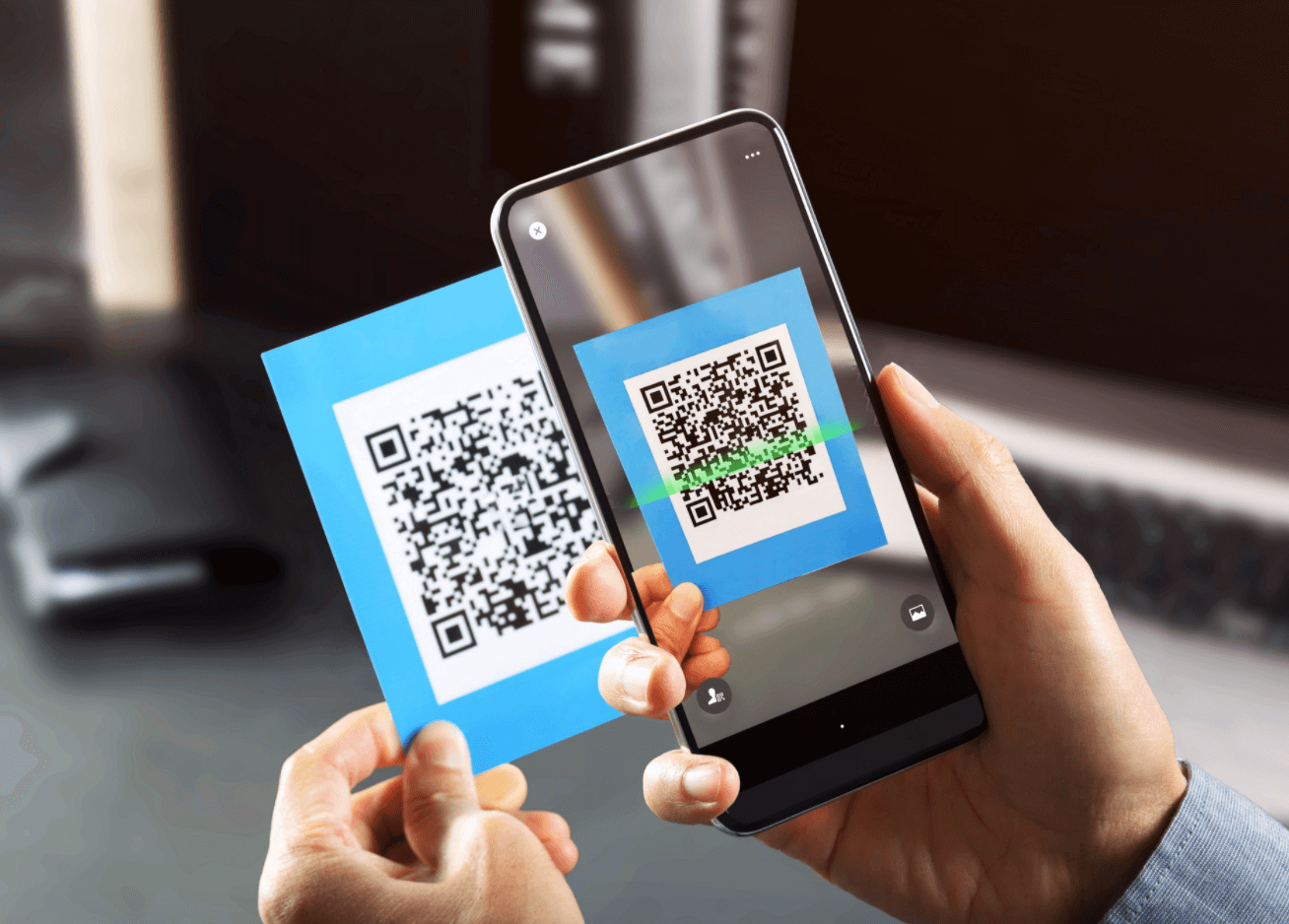
How to Scan a QR Code with Your Smartphone: Complete Guide for iPhone and Android
QR codes have become a familiar part of everyday life. Once a niche technology, they are now used for everything from making payments at the supermarket to accessing restaurant menus without touching paper. They serve as digital shortcuts, storing links, payment details, or important information in a tiny, scannable square.
Think about your last visit to a cafe. Instead of asking for a menu, you may have been shown a black-and-white QR square that instantly opened the menu on your phone. The same technology powers fast payments, allows you to show insurance policies or vaccination records, and even replaces the bulky instruction booklets often bundled with new electronics. Instead of flipping through printed manuals, you can scan a QR code on the box and access an electronic version immediately.
But how exactly do you scan these codes on your smartphone? The answer depends on whether you use an iPhone or Android, and on the specific features of your device. Let’s break it down step by step.
Scanning QR Codes on iOS Devices
Apple has made QR scanning simple and seamless. On iPhones and iPads, the Camera app has this ability built-in, so you don’t need any additional software. Simply open the Camera, point it at the QR code, and wait a second. A notification banner will appear at the top of the screen with the decoded link or action. Tap it, and you’ll be redirected to the webpage or service hidden inside the code. This makes scanning effortless, whether you’re paying at a store counter, entering a museum, or checking out a digital warranty.
Scanning QR Codes on Android Devices
With Android, the situation is a little more varied. Different manufacturers implement features in different ways. On modern smartphones from Samsung, Xiaomi, Redmi, or POCO, the Camera app itself can detect QR codes. When you point your camera at a QR image, a small symbol or direct link will appear on the screen. Tap it, and you’ll be taken to the destination.
For example, Xiaomi and POCO devices show a distinctive icon confirming the QR detection. From there, a single tap on the “Go to website” button completes the process. Samsung integrates the same ability, but the interface may vary slightly depending on your model.
Using Google Lens
If your phone’s default Camera doesn’t recognize QR codes, Google Lens is a powerful backup. Many Android devices already include Lens as part of the Camera interface. Look for the small scanner icon, often located at the top corner. Tap it, then aim the camera at the code. Lens will immediately display the relevant link or action, which you can open with one tap. It’s particularly useful for older models where QR support isn’t native to the camera.
Third-Party QR Code Apps
Not every smartphone includes QR scanning out of the box, especially older ones. That’s where dedicated apps come in. In Google Play, you’ll find dozens of options simply by searching “QR scanner.” One popular example is “QR & Barcode Scanner,” which works in the same way as built-in tools: open the app, point at the code, and follow the link. These apps often come with extra features, such as saving scan history or supporting barcode formats used in retail packaging.
Scanning QR Codes from Photos
You don’t always need to scan a QR code in real time. Imagine you’re sitting in a cafe and your friend hasn’t arrived yet. You take a quick photo of the menu QR code and send it to them so they can decide what to order before joining you. To scan a QR code from a photo, you need an app that supports image-based scanning. Google Lens can do this easily: just select the photo from your gallery, and Lens will extract the code. Similarly, Xiaomi and POCO smartphones include their own “Scanner” app that can process codes directly from stored images.
In short, QR codes are versatile tools that simplify our digital routines. Whether you’re accessing documents, confirming payments, or just sharing a menu, knowing how to scan them properly ensures you won’t miss out on the convenience they provide.
2 comments
bro just use google lens, its way faster
remember when we used to have huge manuals in the box? good riddance