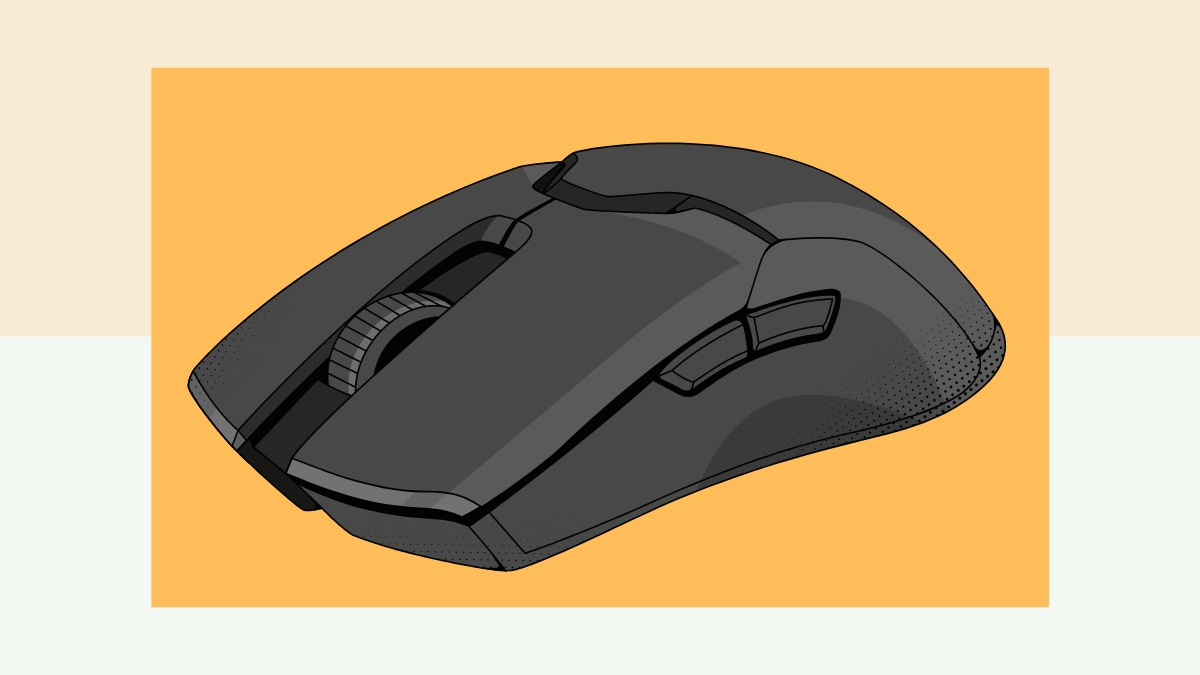
When it comes to customizing your computer mouse, many users are only familiar with the standard left and right buttons, plus the scroll wheel. However, modern mice, especially gaming and professional models, often come with additional side buttons that can drastically enhance productivity and performance. These extra keys are not just there for decoration; they offer a plethora of customization options that can make navigating your computer faster and more efficient, especially in demanding tasks like gaming. In this article, we’ll explore how to set up these side buttons for maximum speed and effectiveness, whether you’re a gamer, a designer, or just someone who wants to work smarter and not harder.
Where to Look for Settings
To customize your mouse side buttons, you typically have two main routes: using proprietary software provided by the manufacturer or employing third-party software. Each method has its pros and cons, but both can lead to significant performance improvements. Let’s dive into each option.
Proprietary Application
Many popular mouse brands, including Logitech, Razer, A4Tech, SteelSeries, MSI, ASUS (ROG and TUF Gaming), HyperX, and Defender, offer their own software that lets you configure side buttons and other mouse functions. This software can usually be downloaded directly from the manufacturer’s website, and it often provides the most seamless integration with their hardware.
For example, we tested the A4Tech Bloody V8 mouse, and by installing the Bloody 7 software, we were able to quickly configure the mouse’s side buttons. In the software, the side buttons are represented as left arrow (4th button) and right arrow (5th button). You can assign a range of actions to these buttons, such as “Open file,” “Cut,” or “Copy,” to streamline your workflow. The A4Tech mouse also supports up to six different profiles, which means you can tailor the side buttons for various programs or games.
These profiles can be switched rapidly by pressing a dedicated button located beneath the scroll wheel. For instance, we set one profile to navigate browser tabs, another to copy and paste in text editors, and a third for weapon switching in CS:GO. This level of customization helps you optimize your workflow or gameplay without constantly reaching for the keyboard.
Third-Party Software
If your mouse doesn’t come with proprietary software, or you prefer using a more universal tool, third-party programs like X-Mouse Button Control can offer full customization options. This free application is easy to use and supports a wide range of mice, even if they don’t have dedicated drivers.
With X-Mouse Button Control, you can reassign side buttons to specific actions, such as “Switch between desktops” or “Take a screenshot.” You can also assign key combinations to side buttons, eliminating the need to manually press multiple keys on the keyboard. This is particularly useful if you’re working in complex software or multitasking with multiple windows open. The program also includes Russian language support, making it a handy option for users in that region.
What Can Be Customized?
The level of customization largely depends on your mouse model and the software it supports. Many mice offer the ability to configure multiple profiles for different applications or games. Some even automatically switch button mappings based on the currently active program. For example, when you switch from Microsoft Word to a web browser, the side buttons could change from copying and pasting text to navigating tabs, thanks to automatic profile switching in Logitech’s proprietary software.
If your mouse doesn’t offer such automatic switching, don’t worry! You can manually configure the side buttons to suit the software or games you use the most. Here are some of the most common uses:
In the Browser
By default, side buttons are often configured for the “Back” and “Forward” actions when navigating websites, which is incredibly useful if you’re regularly moving between pages. However, if you tend to have numerous tabs open in your browser, you might prefer to assign the side buttons to switch between tabs instead of using the typical Ctrl + Tab or Ctrl + Shift + Tab shortcuts.
This small tweak can significantly improve your browsing experience, making it much faster to hop between multiple tabs without relying on keyboard shortcuts. This is particularly beneficial if you work with multiple research materials or have several social media platforms open at once.
In Text Editors
If you’re working in text-heavy applications such as word processors or spreadsheet editors, side buttons can be a game-changer. For instance, you can assign the Backspace and Enter keys to the side buttons to quickly delete text and add paragraphs. This can speed up the editing process and eliminate the need to constantly reach for the keyboard.
You can also assign the side buttons to the popular Ctrl + C (“Copy”) and Ctrl + V (“Paste”) commands, which saves you from having to use the context menu or keyboard shortcuts when moving text between documents. This setup makes the entire editing process smoother and more efficient, especially for those who spend a lot of time working with text.
In the Operating System
For users who rely on multiple virtual desktops to stay organized, you can configure the side buttons to switch between desktops, a feature built into both Windows and macOS. This is particularly helpful for people who work with numerous applications open across different desktops. Professionals such as programmers, designers, or project managers can benefit from being able to seamlessly switch between workspaces, all without touching the keyboard.
In Games
Customizing side buttons for gaming can make a world of difference, especially in fast-paced genres like first-person shooters (FPS) or role-playing games (RPGs). In FPS games like Call of Duty or CS:GO, you can configure side buttons to switch weapons, reload, or throw grenades. These quick actions can often be the difference between winning or losing a match.
For RPGs, side buttons can be assigned to perform actions such as opening the map, using a health potion, or collecting loot. Having these actions mapped to your side buttons helps you stay engaged in the game and react quickly, without having to take your fingers off the movement keys or access the keyboard.
In Work Programs
Side buttons can also improve productivity in creative software like Adobe Photoshop or Premiere. For instance, you can assign the side buttons to create new layers or save your work. This simple shortcut eliminates the need to click through menus and ensures that you don’t lose progress, especially in time-sensitive projects.
For video editors, the side buttons can be mapped to group and ungroup objects using the keyboard shortcuts Ctrl + G and Ctrl + Shift + G. This is particularly useful when working on complex video projects with multiple elements that need to be organized and manipulated quickly.
Conclusion
Customizing the side buttons of your mouse can significantly improve your productivity, whether you’re browsing the web, editing documents, or gaming. The key is to choose a program that suits your needs – whether that’s the software provided by your mouse’s manufacturer or a third-party option like X-Mouse Button Control – and then assign functions that are most useful to you. With a few tweaks, you’ll be able to work faster and more efficiently, and if you’re a gamer, you’ll gain a competitive edge in your favorite titles. So, take some time to configure your mouse side buttons and watch your productivity (or kill count) soar.
2 comments
I mapped mine for gaming, and wow, it’s a game-changer. Highly recommend!
I didn’t realize how customizable my mouse really is. Thanks for the insight! 😊